Configuring Cellular Interfaces
The AirLink XR60 has two SIM card slots that support the cellular interface. By default, the SIM card in the upper slot (slot 1) is the active SIM card.
To configure cellular interfaces, go to Hardware Interfaces > Cellular Interfaces > Configuration.
Table of Contents
 Initializing Table Of Contents...
Cellular Configuration
Not all the settings shown below appear when the router is operating without a SIM card installed.
Click Show more > to display all the settings shown below.
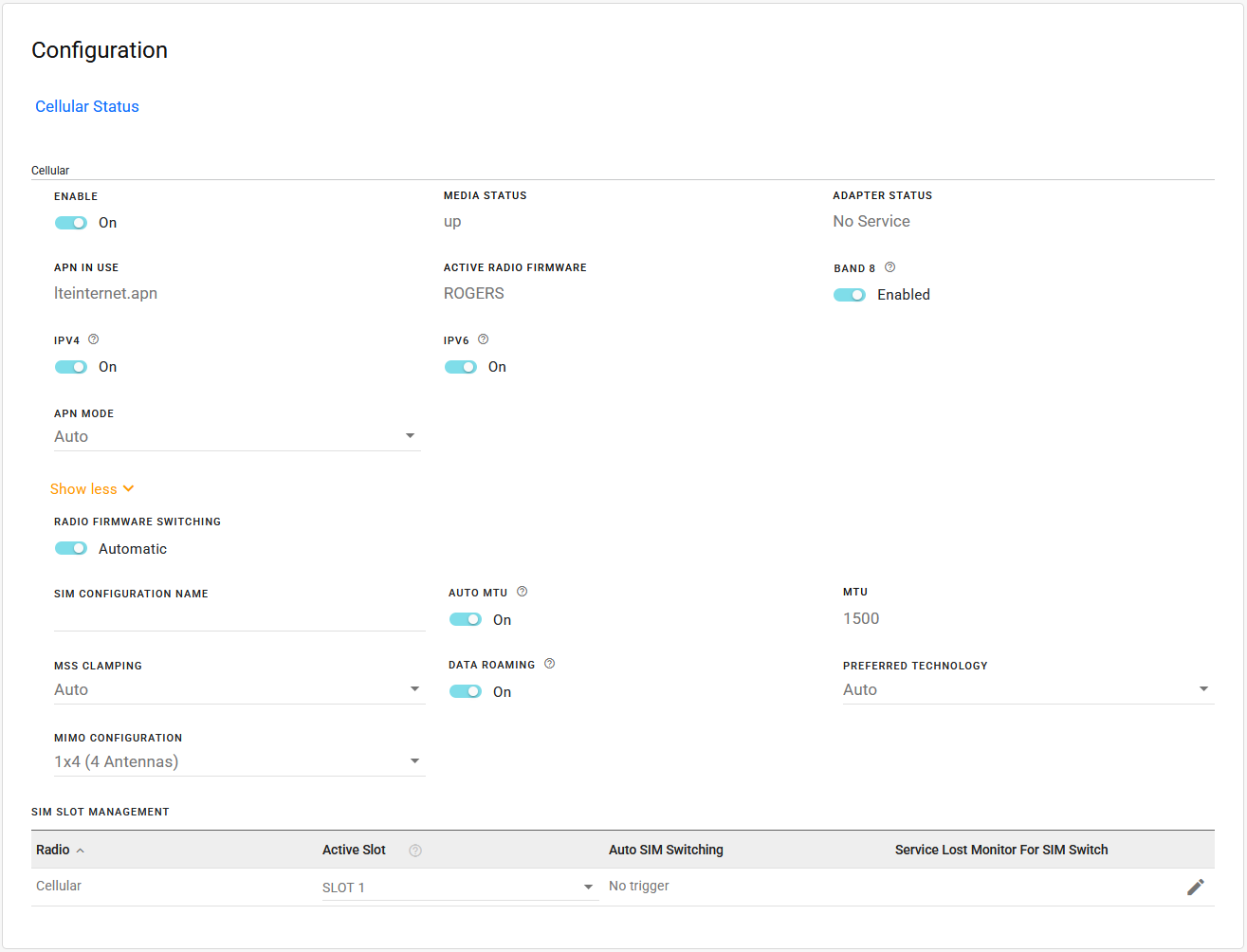
- ENABLE
- MEDIA STATUS: Status of the antenna link connection. This reports whether the antenna is present and a cellular network signal is detected. In some cases, the router may get a cellular network signal even when the antenna is not connected.
- ADAPTER STATUS: Cellular radio and connectivity status can have the following values.
- Initializing: Initiating communication between AirLink OS and the radio module
- Initializing SIM: Reading the SIM card and managing its configuration
- Check Manual Radio Firmware: Validating that the required radio module firmware (if Radio Firmware Switching is set to “Manual”) is present and active
- Check Radio Carrier: Validating that the required radio module firmware (as defined by the SIM card and the Radio Firmware Switching settings) is present and active
- MultiApn: Checking whether the SIM configuration requires the Cellular interface to operate in multi APN mode
- Configuring: Configuring the radio for connection (APN, for example)
- Connecting: Radio is connecting to the network
- Connected: Radio has connected to the network and can pass traffic
- Standby: Indicates the radio adapter has been disabled, or if it is enabled and no cellular network signal has been detected yet
- Wait For Update: Waiting for radio update if requested during Check Radio Carrier, for instance
- Stopped: A problem occurred when AirLink OS tried to initialize the radio (with SIM card inserted) to get on air. To restore operation, reboot the router.
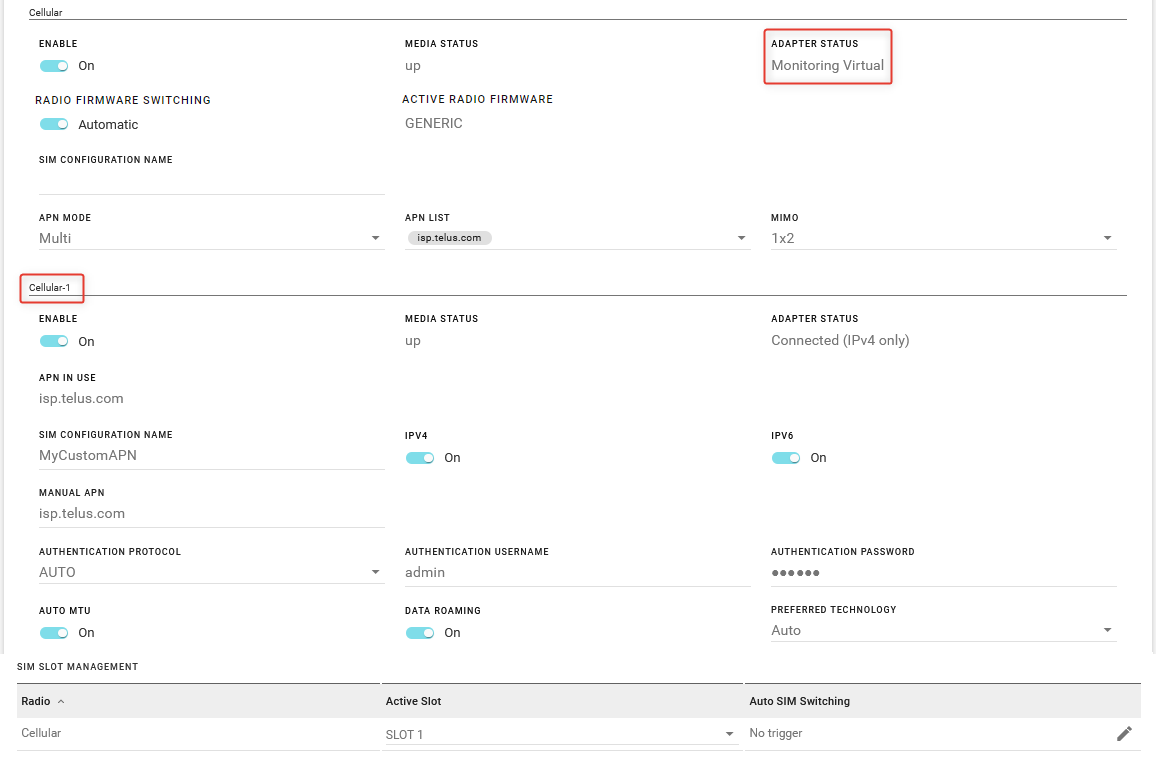
- Monitoring Virtual: The adapter is in Multi-APN mode, with configured virtual APNs
- No Service: The radio is enabled and able to detect a cellular network signal but cannot get any service (2G, 3G, 4G, or 5G). The antenna may be disconnected or faulty, or the SIM card has been deactivated.
- APN IN USE: The APN in use for the current mobile network connection.
- ACTIVE RADIO FIRMWARE: Shows which radio firmware is active.
- BAND 8: By default, LTE band 8 (including 5G n8) is available for the router to use to connect to the cellular network. Disable this setting to prevent band 8 from being used to connect to the network.
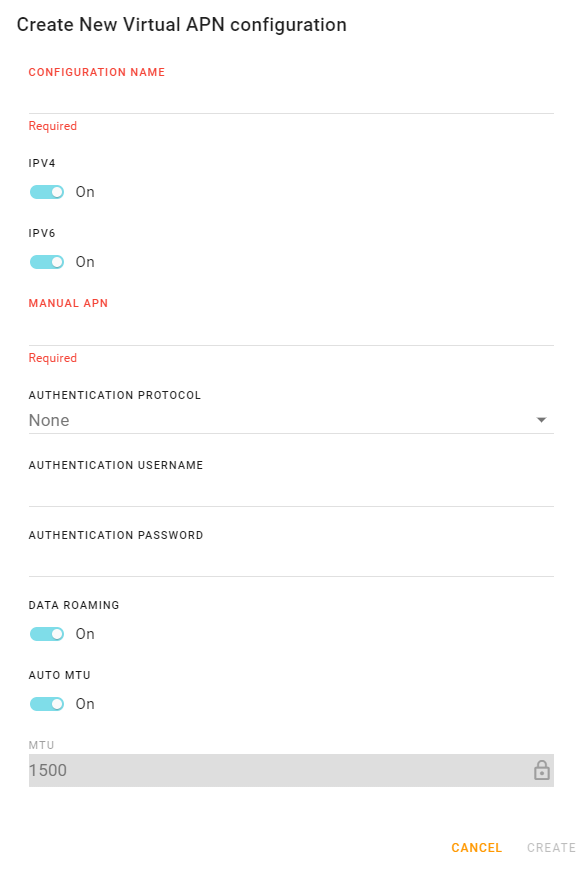
- IPV4: Turn On to allow the mobile network to assign the router an IPv4 address. Turn Off to disable IPv4.
- IPv6: Turn On to allow the mobile network to assign the router an IPv6 address. The IPv6 address and routing information are passed to the LAN clients so that they can acquire IPv6 addresses and pass IPv6 traffic over the mobile network. Turn Off to disable IPv6.
- APN MODE: Auto, Manual, Multi
If the router does not automatically connect to the network, contact your Mobile Network Operator to confirm the APN and activation status of your router. You may need to set APN MODE to Manual and enter your carrier’s APN and other credentials.
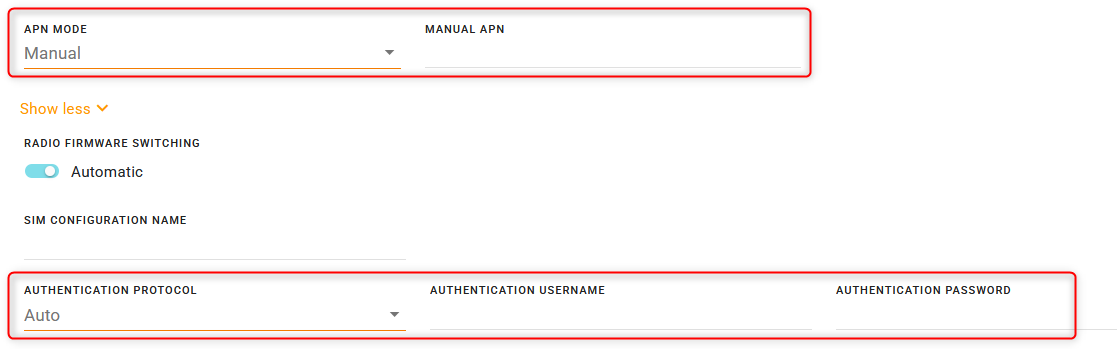
When APN MODE is set to Manual, you may need to set one or more of the following:
- MANUAL APN: The carrier network may assign an APN and allow the router to connect without specifying a manual APN.
- AUTHENTICATION PROTOCOL: If required by your carrier. Options are: None, PAP, CHAP, AUTO
- AUTHENTICATION USERNAME: If required and provided by your carrier
AUTHENTICATION PASSWORD: If required and provided by your carrier
RADIO FIRMWARE SWITCHING: By default, the router automatically selects the radio module firmware. To force the router to use a specific radio module firmware for a different carrier, change RADIO FIRMWARE SWITCHING to Manual, and then select a radio firmware from the list.
- Automatic (default): When the router powers on or reboots, it automatically selects and uses the appropriate radio module firmware for the active SIM card.
- Manual: The router does not automatically select the appropriate radio module firmware when it is powered on or rebooted. You must select the radio firmware.
SIM CONFIGURATION NAME: By default, the installed SIM(s) and associated configuration(s) are included in the SIM Database. You can enter a name for the current SIM Configuration in this field. The name appears in the SIM Database.
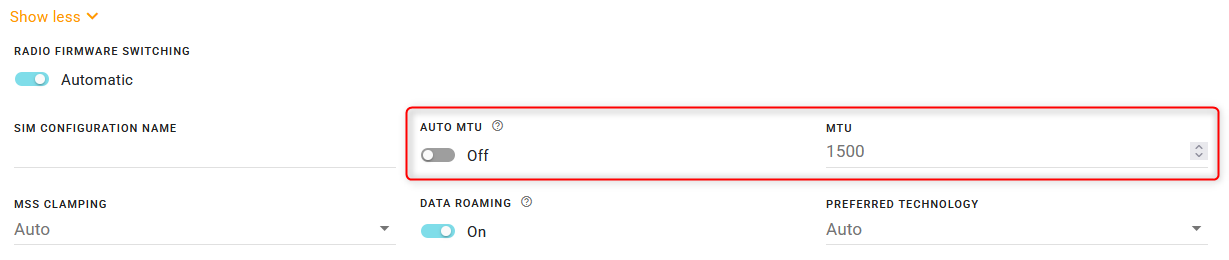
AUTO MTU: By default, AUTO MTU is On. You can turn AUTO MTU off and manually configure MTU (Maximum Transmission Unit in bytes) if you have VPN issues, and as directed by your service provider.
MSS CLAMPING: MSS (Maximum TCP Segment Size) Clamping controls the maximum packet size used for TCP connections between a local (LAN-side) host and a remote host over the cellular WAN interface. MSS Clamping helps avoid possible issues with sending and receiving large TCP packets over the cellular network when other standard MTU mechanisms do not appear to be working with your installation.
By default, MSS Clamping is set to Auto. It can also be set to Disabled, or to Manual. When set to Manual, you can set the Maximum TCP Segment Size (range is 1–2000 bytes, default is 1460).

DATA ROAMING: Enables or disables roaming on the active SIM. When OFF, the active SIM does not use data when roaming.
PREFERRED TECHNOLOGY: Restrict the router to using a specific cellular technology: Auto (default), 3G Only, 4G Only, 5G Only
MIMO CONFIGURATION: Selects the MIMO (Multiple Input/Multiple Output) antenna configuration for the router’s radio module. The cellular antenna bank can have up to 4 antennas connected. Options are:
- 1×4 (4 antennas)
- 1×2 (2 antennas) Two-antenna operation requires EM9291 radio module firmware version 03.04.07.00 or later for a carrier that supports this functionality. The antennas should be connected to terminals Cellular 1 and Cellular 3 on the router.
Important: Two-antenna operation should not be used in applications requiring high throughput. Please consider that omitting two antennas will limit throughput by restricting available data streams. Overall cellular performance may be affected due to increased interference caused by allocating RF streams to only two antenna outputs.
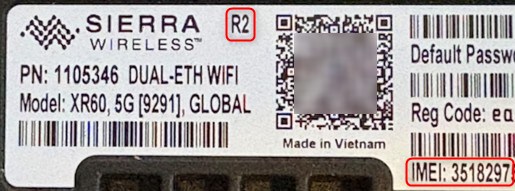
AirLink XR60 “R2” models support two-antenna operation. You can identify these models by “R2” and IMEI starting with 35182971 printed on the bottom label.
SIM Slot Management
The AirLink router has two SIM card slots and is capable of supporting a primary and secondary SIM card. By default, the SIM card in the upper slot (slot 1) is the primary SIM card.
For more information on SIM Slot Management, see SIM Slot Management and Configuring SIM Failover.

Multi-APN Configuration
When using a SIM that allows for multiple APNs, you can configure additional APNs.
To configure an additional APN:
Under APN MODE, select Multi.
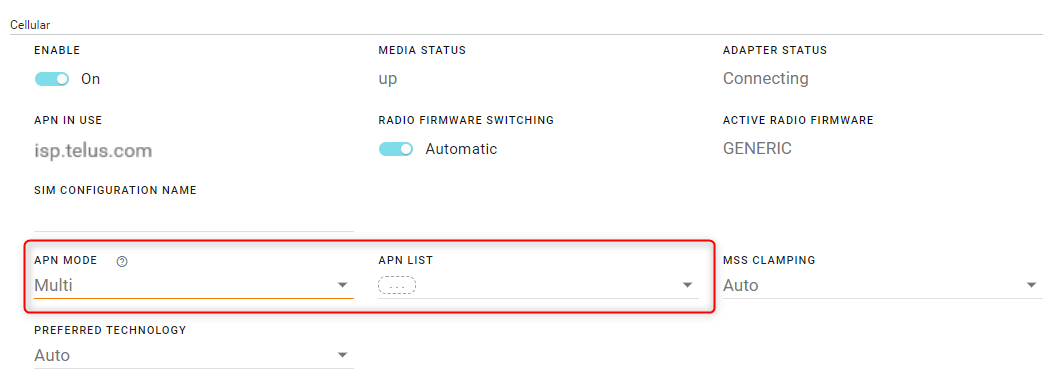
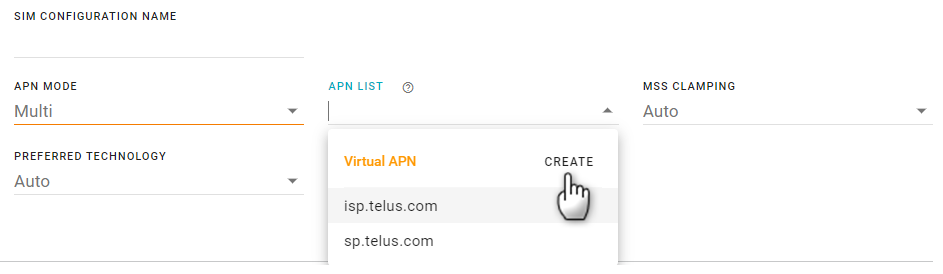
In the APN List, click CREATE. The Create New Virtual APN configuration screen appears.
Configure the APN settings and then click CREATE.
You will see the Cellular Interface settings for each new APN that you create below the “parent” Cellular interface. The parent Cellular interface status becomes Monitoring Virtual.
In the example below, the main Cellular interface has the sub-interface Cellular-1. This additional APN, when enabled, is the potentially active interface when the Cellular interface is in Multi APN mode.