 Searching...
Configuring the Network Watchdog
The router can monitor network connections and attempt to recover when a high-level communication failure is detected on a WAN or LAN connection. For example, when the router is connected to an Ethernet WAN link but the link stops passing traffic, the router can switch to another available WAN link and restart its Ethernet port in order to attempt to recover connectivity.
The Network Watchdog detects connection failures and recovers the connection by periodically checking against its preconfigured parameters for conditions such as a minimum number of connection failures and timeouts.
To configure the network watchdog:
Go to Networking > Network Watchdog > Monitoring Rules.

Click CREATE MONITORING RULE to create a new rule, or click Edit (
 ) in the RULES table to update an existing rule.
Begin configuring the Monitoring Rule.
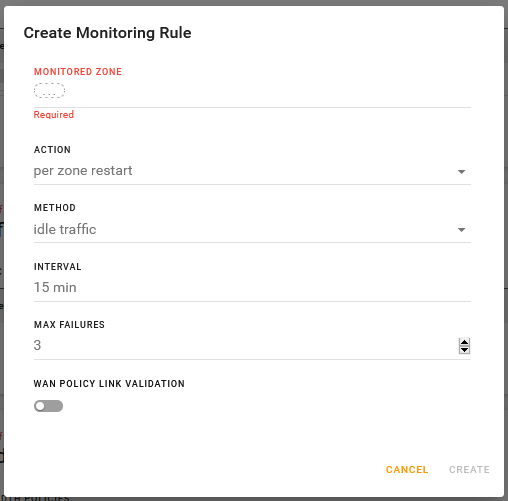
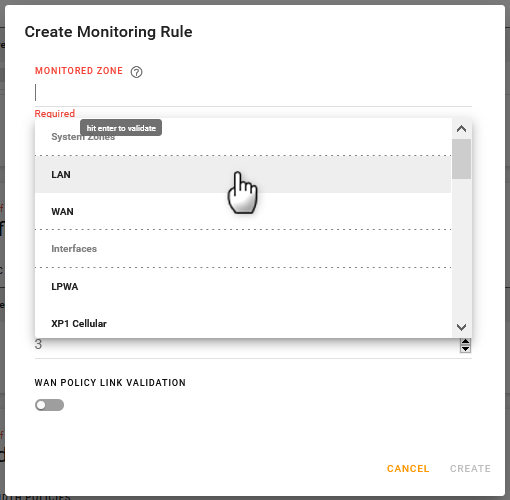
Click the MONITORED ZONE field to choose which Zones (System Zones or your own defined zones) or interfaces you want to monitor. Zones are a group of interfaces. Add as many as you want.
Select the ACTION the router will take when the watchdog detects a failure:
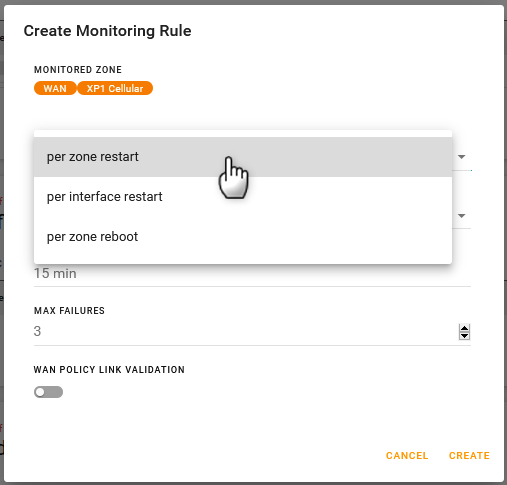
per zone restart restarts all interfaces in the monitored zone when all interfaces in the monitored zone are down.
per interface restart restarts the interface when one interface is down.
per zone reboot reboots the router when all interfaces in the monitored zone are not working.
Select the monitoring METHOD:
idle traffic allows you to monitor without sending a ping. AirLink OS monitors traffic (tx/rx packets) to determine whether the selected interface(s) are operating. This method is suitable for satellite links, where you want to minimize monitoring-related traffic (such as pings or DNS lookups used by other methods). NOTE: Sierra Wireless does not recommend this method at this time. The idle traffic threshold will be adjusted in a future AirLink OS release.
ICMP ping: sends ping traffic at a configured interval whether the interface is Idle or carrying traffic.
ICMP ping on idle traffic: sends a ping when the router detects idle traffic (no increase in rx/tx values is detected).
DNS lookup: attempts to resolve host names at a configured interval whether the interface is Idle or carrying traffic.
DNS lookup on idle traffic tries to resolve the hostname. Some firewalls do not allow ICMP pings through, so DNS lookup is the best option in that case.
Select the ping INTERVAL (in minutes). Frequent pings are used especially for Wi-Fi links. (the interval may change to seconds in the future).
Select the MAX FAILURES (from 1 to 10) to set the number of successive failures (failed pings or idle traffic detected, depending on your monitoring method) before the router takes the specified action.
Enable or disable WAN POLICY LINK VALIDATION. This setting is not directly related to the network watchdog, but it is used in WAN Policy to determine that a WAN link/interface has reached desired connectivity level before it is considered as the preferred link. In some situations, the preferred link comes up but it is not functional either due to the lack of connectivity (no Internet connection) or lack of network services like DNS. When enabled, the router sends pings or DNS requests to validate the link.
For WAN Policy Link Validation and monitoring methods other than idle traffic, set the following fields (both fields accept hostname [FQDN] or IPv4 or IPv6 address):
- Primary Host
- Secondary Host (optional, used if the Primary Host fails)
Click CREATE.

 ) in the RULES table to update an existing rule.
