Logging
AirLink OS routers gather two types of logs: regular logs and audit logs. These log files can be accessed directly on the router when locally connected to it. When using ALMS, these log files are available by retrieving the logs from the ALMS dashboard of the router.
The AirLink logs do not contain any passwords.
All logging options are found under System > Logs.

 Initializing Table Of Contents...
Note: Neither factory resetting nor reflashing will erase the logs. There is no current method to erase either of the logs. A log rotation policy is used to control the size of the logs.
Direct Connection Logs
When directly connected via Wi-Fi or Ethernet on the AirLink OS router, the choices that appear are as follows:

Regular logs will display the device log files, making it easier to identify the root cause of any issues or errors. Audit logs contain all the device changes since date of manufacture. Log levels control how detailed the regular logs will be. Audit logs are not affected by log level changes. For information on the Troubleshooting Package, refer to Troubleshooting Package .
When selecting either Regular Logs or Audit Logs, the log file will appear.
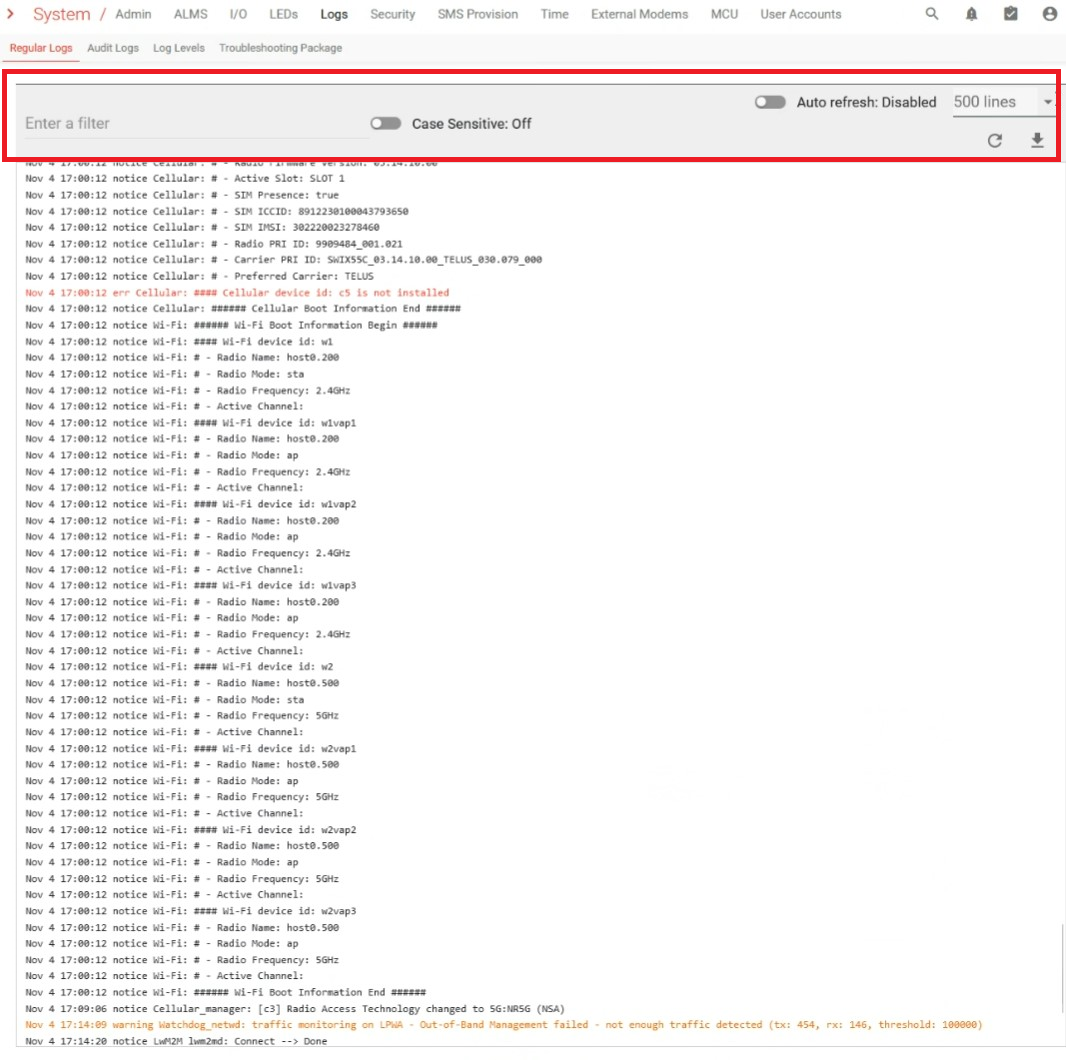
Using a filter helps narrow down the search for a specific event. Case sensitivity is set to off by default. Auto refresh is also disabled by default, and the display is limited to 500 lines unless the limit is changed. To update the view with the latest events, click  . To download each log file to your local PC, click
  .
.
When filtering the display for a specific event, such as DNS, only lines with the word DNS will appear. To view events that occured around a specific DNS event, click that line to expand and display events from the same time period. Those lines not containing the filtered word will be dimmed. There is no impact on what is stored in the regular logs.

ALMS Logs
When using ALMS to remotely connect to the Airlink router, only Log Levels will appear as a choice in the Logs menu.

If you want to view the router’s logs remotely, go to the ALMS dashboard of the router and click Retrieve Logs to download them to your local PC. The logs are combined into one file and then downloaded to your local PC. You can use a text editor to view the downloaded file.

Log Levels
There are a number of different log levels, each indicating the level of severity of the message. You can configure Log levels on individual systems with AirLink OS. Below is an example showing a few of the systems with their log levels.

- EMERGENCY: System may be unusable
- ALERT: Action may need to be taken immediately
- CRITICAL: Critical condition of device
- ERROR: Error conditions are detected; AOS may attempt to recover with or without a reboot
- WARNING: A significant, but unusual event has occurred that may require corrective action on the part of AirLink OS or the end user
- NOTICE: (default): Normal, but significant events have occurred
- INFO: Information regarding events that have occurred
- DEBUG: Detailed information that may be useful during an extensive debug process
WARNING: It is recommended that all the settings be kept at NOTICE, unless directed by Semtech Technical Support. INFO and DEBUG should only be used under guidance from the Semtech support team, as the messages that they produce are intended for developer level troubleshooting.