Reboot and Reset
The router can be rebooted or reset:
- Locally by accessing the AirLink OS UI with a PC connected on the router’s LAN
- Physically by pressing the Reset button on the router
- Remotely via ALMS, using the AirLink OS configuration UI or clicking Reboot (
 ) or Factory reset (
  ) in the toolbar in Monitor > Systems or in the System Detail View
 Initializing Table Of Contents...
Reboot
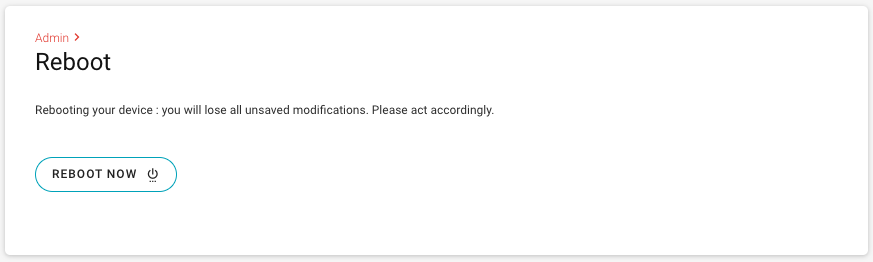
Click REBOOT NOW to reboot immediately. Any unsaved settings will be lost.
Reset Settings
Under Reset Settings, you can disable the Reset button on the router, enable clearing user data during reset, and configure the type of reset.
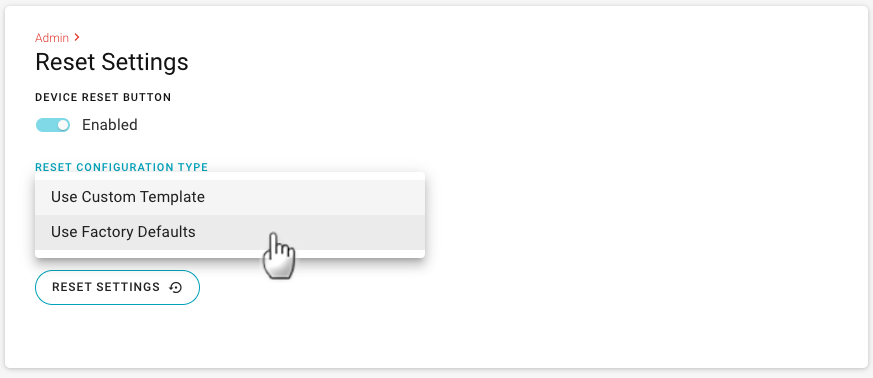
DEVICE RESET BUTTON
Disables or enables the Reset button on the router. The button is enabled by default. You may want to disable the Reset button to prevent unauthorized tampering with the device.
When the Reset button is enabled, the following table explains the possible actions.
| HOLD BUTTON FOR ... | ACTION | POWER LED BEHAVIOR |
|---|---|---|
| < 5 seconds | Release to reboot the router | Fast flashing green |
| 5 to 20 seconds | Release to reset to the RESET CONFIGURATION TYPE state | Fast flashing red |
| 20 to 40 seconds | Release to reset to factory defaults | Fast flashing yellow |
| Over 40 seconds | Release to cancel reset | Fast flashing yellow and red |
CLEAR ALL LOGS - WITH RESET
Enable this setting to delete potentially sensitive user data from the router.
This functionality is primarily used when a device is decommissioned or undergoing a custody transfer. Enabling CLEAR ALL LOGS - WITH RESET and then resetting the router to factory default settings will clear all user-generated data while keeping the existing operating system and radio module firmware versions intact.
The CLEAR ALL LOGS - WITH RESET setting is disabled by default, and applies only when the RESET CONFIGURATION TYPE is set to USE FACTORY DEFAULTS.
Please use caution when enabling this setting because resetting the router to factory default with CLEAR ALL LOGS enabled will:
- remove all the user data, including audit logs and system logs, from the device. The cleared data is non-recoverable.
- remove the backup image, resulting in SWITCH TO BACKUP IMAGE becoming unavailable. See Updating AirLink OS Software.
RESET CONFIGURATION TYPE
This setting is used to specify what type of reset configuration will be used when resetting the router configuration.
When resetting the router remotely in ALMS by clicking Factory reset (
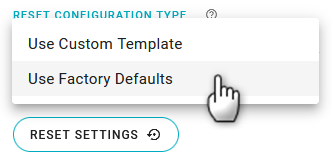
- USE FACTORY DEFAULTS will reset the router to factory default configuration.
Some settings linked to the router and radio firmware cannot be reset to factory defaults. Those settings are impervious to reset to factory defaults, for example, radio module firmware states.
USE CUSTOM TEMPLATE allows you to specify a custom template as your default configuration, when the router is reset. Select USE CUSTOM TEMPLATE and it will display the current template that is stored. If the CURRENT TEMPLATE is blank or you wish to change the custom template used, then click SET TEMPLATE to load the template from your local computer.
The maximum upload file size is 64 KB per file.
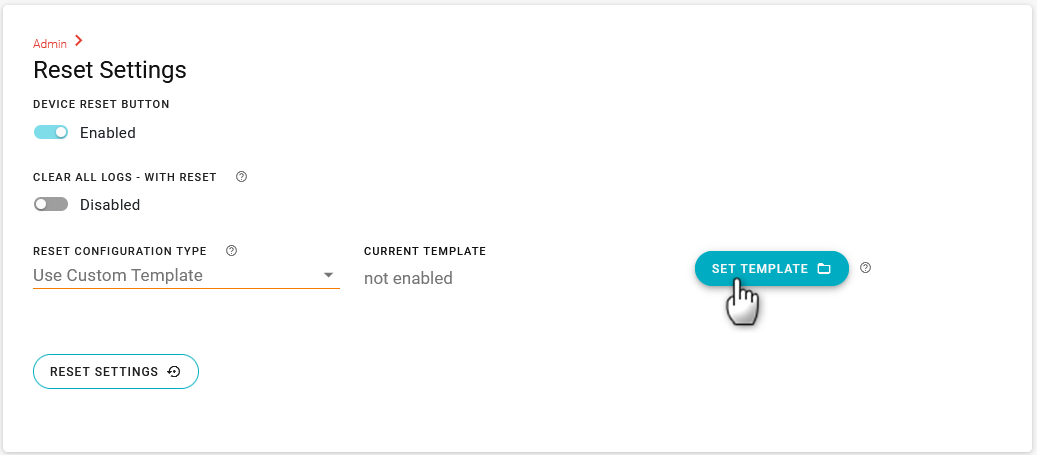
Templates created from different software versions or different hardware cannot be applied to the router. “Version mismatch” and “Product mismatch” alerts will indicate incompatibility. If the CURRENT TEMPLATE is incompatible, it will be automatically deleted.
If the RESET CONFIGURATION TYPE is set to USE CUSTOM TEMPLATE, it is reset to USE FACTORY DEFAULTS after an AirLink OS software upgrade.
Click RESET SETTINGS to reset the router. A confirmation screen will appear.
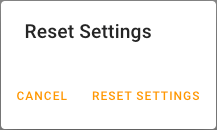
Click CANCEL to cancel the reset, or click RESET SETTINGS to reset.