Configuring Container Applications
Table of Contents
 Initializing Table Of Contents...
Overview
Container applications allow you to deploy Open Container Initiative (OCI)-compatible containers to the router to run applications or computational workloads locally. This way, you can extend the functionality of the router or run applications in the router without impacting router behavior.
Common container application use cases include data acquisition, IIoT, and data store and forward, among many others.
OCI container support enables the use of many Docker-based images and registries.
Early Adopter
The Container Application support is currently in the Early Adopter phase and is targeted to technical customers who wish to deploy container applications into production environments. Early adopter customers should understand and be comfortable with the current solution limitations, listed below, if they are going to be used in production.
Limitations
- Pulling a multi-architecture image from a registry is not currently supported.
- Image WORKINGDIR is not respected.
- Downloading images with large layers (in relation to the router’s available memory) from a Docker registry may fail due to consuming too much memory.
- Container logs are reset when full.
- Container logs cannot be retrieved from ALMS.
- The container must be launched at least once in order to assign port forwarding rules, DHCP assignment, and other network parameters.
- Serial port cannot be mounted into a container.
- SD-Card for the AirLink XR60 is not currently supported.
- Container applications have the ability to mount volumes for persistent storage and configuration files that leverage the router file system. This storage uses FLASH resources allocated for containers and AirLink OS. Edits to container applications will affect flash storage, as reported under Status/Monitoring > System > Storage Wear.
- Container applications will not support:
- Privileged access to AirLink OS
- Direct access to the radio module
- Direct access to the CAN bus
Support Statement
Semtech will provide support for the container application framework but is not responsible for the support or troubleshooting of the users’ container application(s). It is the responsibility of the end customer to verify the container application functions as expected on Semtech routers.
It is the responsibility of the end customer to ensure that the container application is secure and maintained in line with their deployment requirements.
While Semtech will endeavor to maintain compatibility and resource availability between AirLink OS versions, container applications should be tested and verified to ensure they function as expected on new versions prior to upgrade or deployment.
License Requirements
Using container applications in production environments requires an Edge Compute add-on license per router. Please contact your Semtech partner for more information.
An Edge Compute add-on license is not required in the following situations:
- When using the container application to run an Edge Application separately licensed by Semtech
- When used solely in non-production environments, such as during the development of container applications, or proof of concepts, or for testing purposes
Router resources and CPU architecture
The following memory and flash resources are available to container applications on the AirLink routers listed below. The container image must be built for the associated CPU architecture.
Resource availability is subject to change between AirLink OS releases.
| AIRLINK ROUTER | MEMORY | FLASH | CPU |
|---|---|---|---|
| XR60 | 1.2 GB | 750 MB | Quad-core ARMv8 64-bit |
| XR80 | 200 MB | 750 MB | Quad-core ARMv8 64-bit |
| XR90 | 200 MB | 750 MB | Quad-core ARMv8 64-bit |
| RX55 Wi-Fi Plus* | 600 MB | 2.8 GB | Dual-core ARMv7 32-bit |
*The non-WiFi Plus RX55 models have limited resourcing and are not recommended for container applications. Container application support for these devices will be removed in a future release.
Configuring Container Applications
You can configure container applications in the following sections under Container Applications (Early Adopter).
General Status
Under General Status, you can Enable container applications on the router and view container status.

Enable Container Applications
To enable the router to pull the application image and allow applications to run, you must enable the container applications feature on the router.
To enable container applications:
- Go to Apps > Container Applications > General Status.
Click ENABLE. The switch should display Enabled.
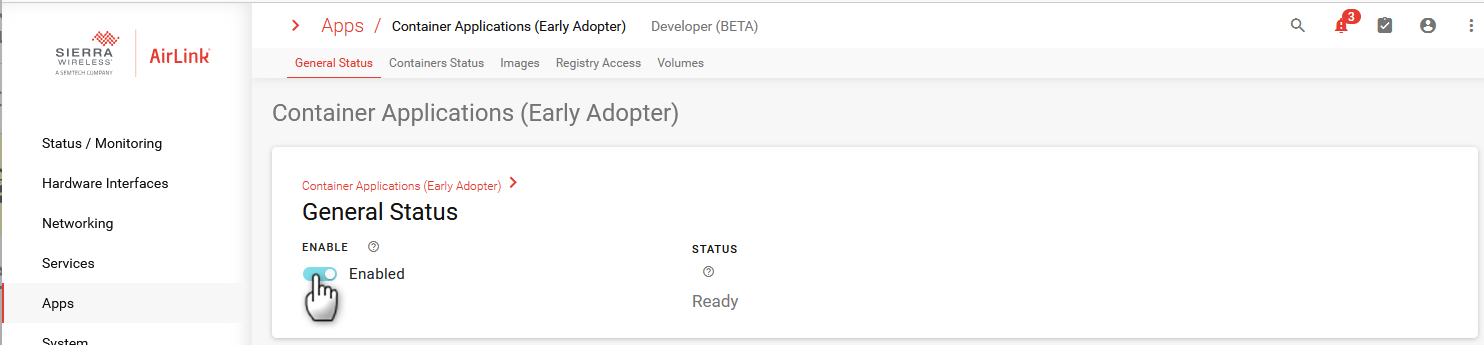
Click SAVE.
Containers Status
Under Containers Status you can create and run the container application.
In the CONTAINER LIST table, you can view container parameters, retrieve container logs and manually stop and start the container.
- Autostart–Enable automatically starting the container when the router reboots
- Name–The name of the container application
- Image–The Container Repository and Tag (Repository:Tag)
- Volumes–Names of the volumes that the container is using
- LAN Segment–The LAN Segment on which the container is configured to run
- RAM Limit–Amount of RAM allocated to this container
- Status
- Logs–Click to download container logs
- Action–Click to manually stop or start the container

Create Container Application
To create the container application:
Go to Container Applications > Containers Status.
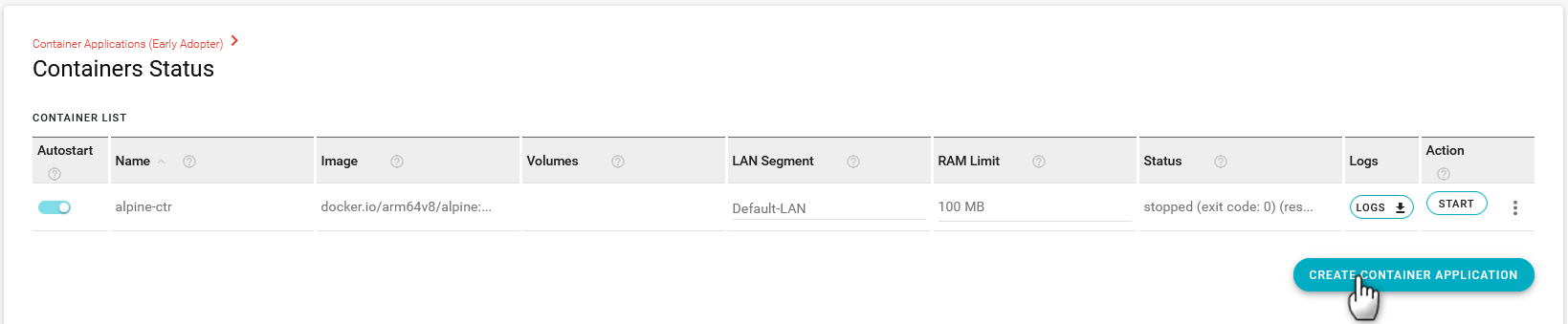
Click CREATE CONTAINER APPLICATION. The Create Container Application menu appears.
- You can configure a maximum of five container applications
- If the amount of RAM used by the configured container goes above the configured RAM usage limit defined, container processes will be killed in order of decreasing RAM utilization until the usage is below the configured limit. If the initial process launched to start the container is terminated, the container would stop with an exit code of 137. In such cases, the configured restart policy is applied.
- At any point, the total sum of the RAM limits of all running containers cannot exceed the device-specific RAM limit.
- When deploying a new container and doing so would cause the total sum of the RAM limits of running containers to exceed the device-specific RAM limit, the container will not start. The container will show the status as “Cannot start, RAM available on device is not sufficient”. These container start failures would not be covered by the restart policy, so the system will not attempt to restart them. You must adjust RAM usage limits prior to starting the container (see RAM LIMIT below).
- You can configure a maximum of five container applications
Configure the settings as described below and then click CREATE.
| SETTING | DESCRIPTION | DEFAULT SETTING | RANGE |
|---|---|---|---|
| NAME | Name for the container application | blank | n/a |
| AUTOSTART |
Enable automatically starting the container when the router reboots. If you enable or disable container applications, containers with AUTOSTART enabled will start and stop. For example, while the router is running, if container applications are disabled, all containers stop. When container applications are enabled again, all AUTOSTART-enabled containers start. |
Enabled | Enabled, Disabled |
| RESTART POLICY |
Select the restart behavior when the container stops.
|
On-Failure Restart | On-Failure Restart, No Restart |
| RESTART MAX RETRIES |
Set the maximum number of automatic restart attempts. When this number is exceeded, the container will not restart automatically. The current number of restart attempts is reset when the container is manually stopped or when it normally exits, such as after a router reboot. The restart delay is fixed at 1 minute. |
10 | 1–100 |
| IMAGE |
Select the container image from the available images. |
blank | Any configured image, or click CREATE to enter an image reference and registry configuration |
| VOLUMES |
Select the volume from the locally available volumes. |
blank | Any available volumes, or click CREATE to create a container volume |
| LAN SEGMENT |
Select the LAN Segment that the container will run on. |
Default-LAN | Any available LAN Segments, or click CREATE to create a LAN Segment |
| RAM LIMIT |
Set the maximum amount of RAM that the container can use. |
100MB | 1– Device-specific RAM limit |
| COMMAND |
Leave blank to start the application using the ENTRYPOINT and/or CMD specified in the container image. Optionally, enter a command to start the application, overriding any commands in the container image. |
blank | n/a |
| IPV4 AUTO ASSIGNMENT |
Enable to perform a DHCP request once when the container starts. |
On | On, Off |
| IPV6 AUTO ASSIGNMENT |
Enable to perform a router solicitation once when the container starts. |
On | On, Off |

Images
Under Images, you can install images on the router by pulling from a registry or local upload (using the UPLOAD NEW APPLICATION IMAGE button).
The FREE SPACE ON CONTAINER FLASH PARTITION number shown in Apps > Images indicates the space available for Apps. This space is used for storing images, volumes and container logs. It is recommended that images are pulled from an Image Registry. The UPLOAD NEW APPLICATION IMAGE interface is provided only for early trials.
There is a limitation on the upload interface in that it works in two steps: first the image is uploaded completely to the USER partition, and then it is extracted. While the uploaded image is deleted right after this extraction, there is a brief moment when the disk requirement is double the size of the image. This creates a limitation on the maximum image size that can be uploaded from the UI.
In the IMAGES table, you can view image parameters, see status information, and manage the image.
- Repository:Tag–The image’s repository and image reference. The repository is displayed as localhost/ if the image was uploaded locally.
- Image ID–The unique identifier for the container image
- Size On Disk–Size of the layers used by the image. Because layers can be shared by several images, the total size of all image and used space on the container partition may differ.
- Status–Status of the image. For more information, you can download the logs emitted by the container application using the LOGS link in CONTAINER LIST table.
- Action–Click the REFRESH button to fetch a new version or click RETRY to retry a failed pull. You can click
 to delete the image, or see additional information. An image can only be deleted if it is not currently in use.
 to delete the image, or see additional information. An image can only be deleted if it is not currently in use.
Pull the Application Image
To pull an image from the registry:
- Go to Container Applications > Images.
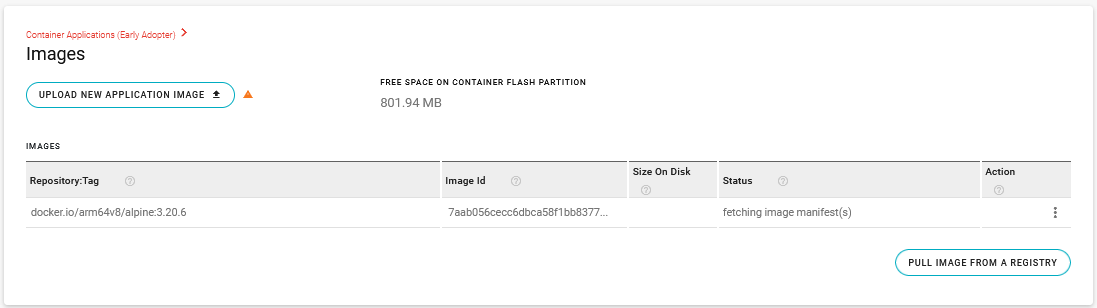
Click PULL IMAGE FROM A REGISTRY. The Create Pull Image From A Registry menu appears.
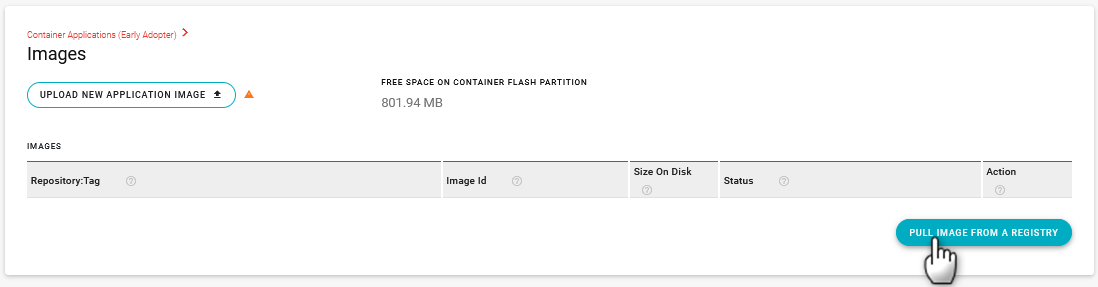
Enter the IMAGE REFERENCE. The reference is the path to the image file in the registry.
Under SELECT REGISTRY CONFIGURATION, click x and select the Registry Configuration name.
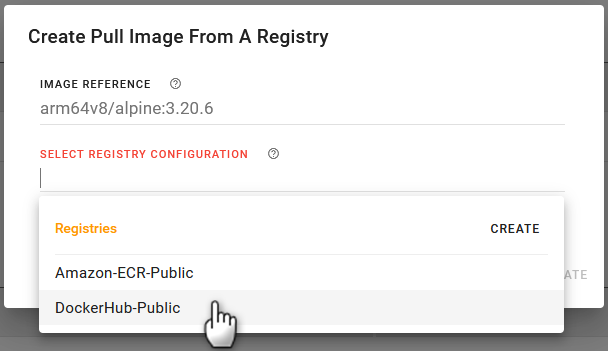
Click CREATE.
Click SAVE.
The router begins pulling the application image (you can view progress in the Status column).
Upload the Application Image
In certain scenarios (debugging, for example), you may need to upload the application image locally (that is, using a laptop connected directly to the router). The image must be in a .tar file.
To upload the image locally:
Go to Container Applications > Images.
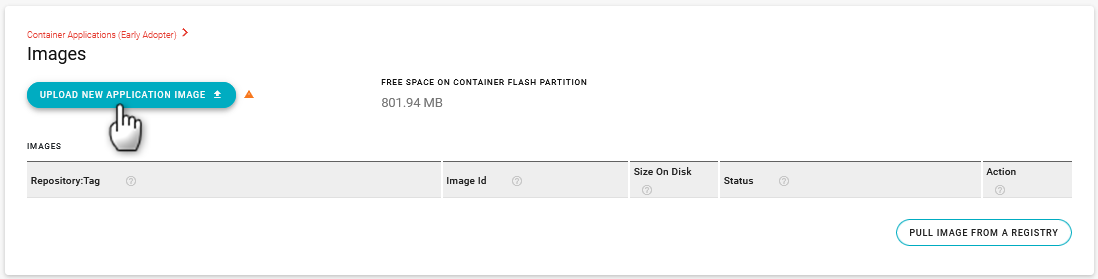
Click UPLOAD NEW APPLICATION IMAGE.
Upload the image .tar file.
Verify that the image upload was successful, and the image is listed in the IMAGES table.
- Uploading the image can take several minutes, depending on image size.
- Images uploaded locally cannot be included in templates. If you need to deploy containers across a fleet of routers using templates, you must pull the image from a repository.
Update the Application Image
To fetch a new version of the application image:
Go to Container Applications > Images.
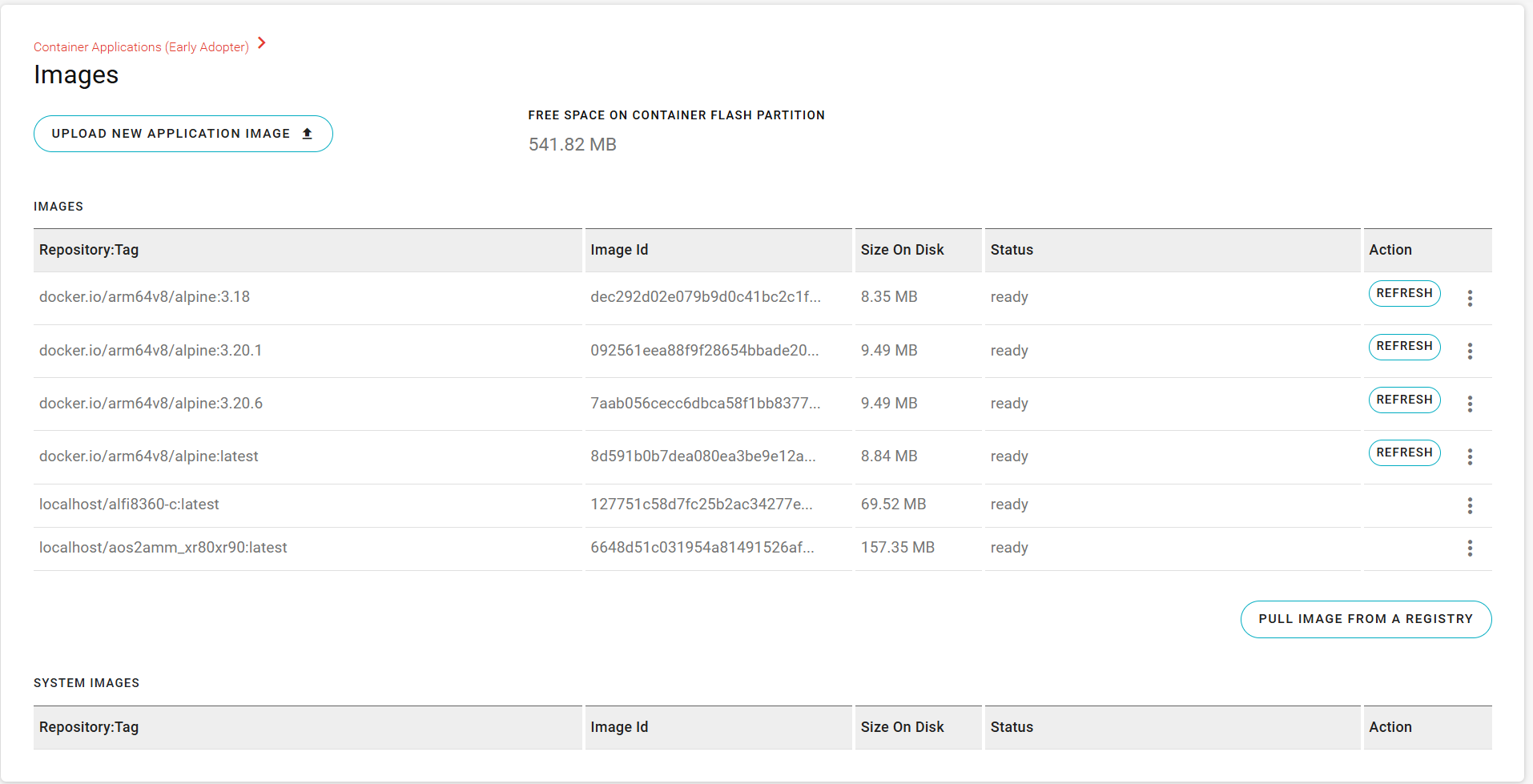
In the Action column, click REFRESH for the desired image.
The router will fetch the manifest for Repository:Tag and if the Image Id has changed (usually due to a version upgrade), the image will be fetched again. The Status will show the progress. The previous image is retained with the tag <none>.Locally uploaded images do not support updating, and the REFRESH button will not show for them.
Verify that the image update was successful, and that the image is listed in the IMAGES table.
- Updating the image can take several minutes, depending on image size.
- When you want to use the new image, you need to edit the container configuration to refer it to this new Image Id. This will cause the running container to restart with the new image.
- You should manually delete all old unused <none> tagged images.
Registry Access
Under Registry Access, you can configure a link to the image registry from which the router can obtain container images.
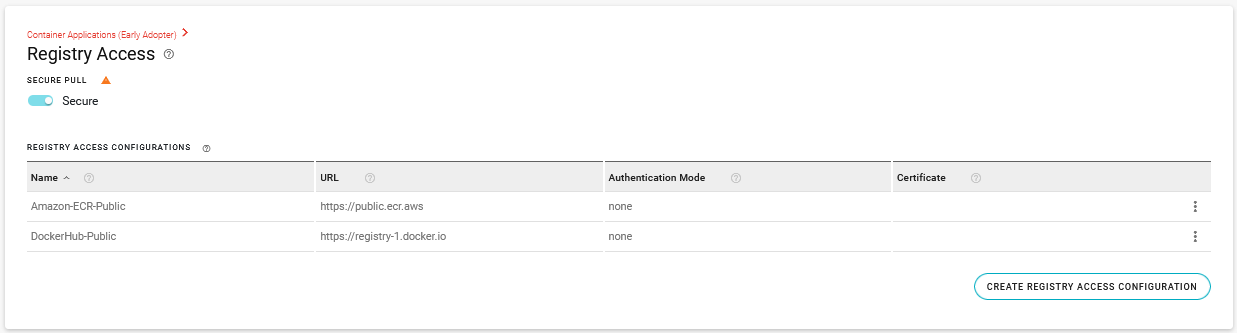
The SECURE PULL setting enables or disables pulling an image from a registry with an HTTP URL, or to skip HTTPS certificate verification.
In the REGISTRY ACCESS CONFIGURATIONS TABLE, you can view information about your configured repositories.
- Name–The identifier of the registry access configuration
- URL–The URL of the registry
- Authentication Mode–The registry access authentication mode. none means that the server is publicly available; basic means that access to the server is controlled by HTTP basic authentication, requiring username and password.
- Certificate–Name of the certificate used to validate an HTTPS connection to the registry.
Configuring Registry Access (If Required)
To get the application image from a remote source, the router must access the registry where the image resides. The router is pre-configured to access the Amazon-ECR-Public registry and the DockerHub-Public registries, as shown in the REGISTRY ACCESS CONFIGURATIONS table.
When using a private APN network, ensure that the router can DNS resolve the FQDN where the application image is hosted and can communicate (outbound initiated) to the resolved URL using HTTPS (on port TCP/443). You can configure Registry Access with a different port like https://mydomain.com:5000 in which case communications to that port must be allowed.
To configure registry access:
If required, disable SECURE PULL to allow pulling an image from a registry with an HTTP URL, or to skip HTTPS certificate verification. Note: Do not disable SECURE PULL in a production deployment, as it can lead to using untrusted sources.
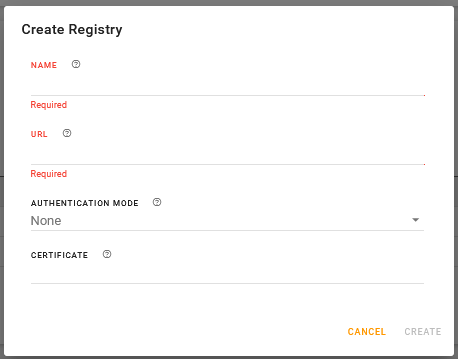
Click CREATE REGISTRY ACCESS CONFIGURATION. The Create Registry menu appears.
Enter the registry NAME. This name cannot be edited after the registry is created.
Enter the full URL to the registry.
Select the AUTHENTICATION MODE: None (default–the server enables public access) or Basic (the server uses access control based on HTTP basic authentication).
If you have selected Basic for the AUTHENTICATION MODE, enter the USERNAME and PASSWORD. If required, select the CERTIFICATE to validate HTTPS connection. You can select an existing certificate (see Security > Certificates) or create/upload a new Registry Server certificate.
Volumes
Container volumes can be used to create persistent directories that can be used within a container or shared across containers. A volume can also be used to deliver configuration to the container outside of an image update.
There are two types of container volumes.
- A configuration volume will have a .tar file associated with it, that will be untarred into the volume after upload. This volume should generally not be used for other data.
- A data volume, where persistent container data should be stored. No .tar file is associated with this volume type.
The .tar file based volume will be exported into a template while the persistent data volume will not be.

Create the Container Volume
To create the container volume:
Go to Apps > Container Applications > Volumes.
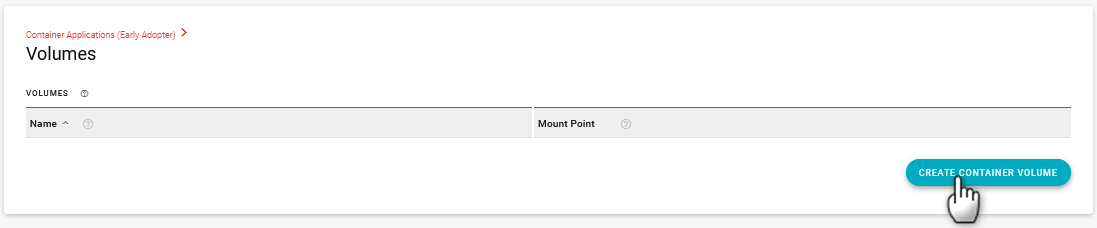
Click CREATE CONTAINER VOLUME. The Create Container Volume menu appears.
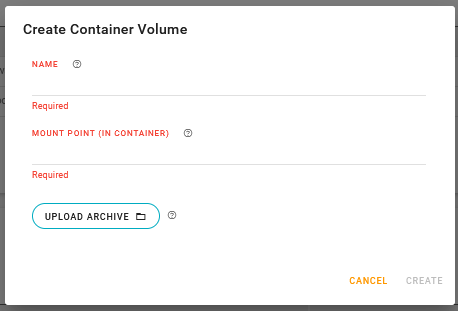
Enter a NAME; config, for example.
Enter the MOUNT POINT for the volume. This will be used when mounting the volume into the directory. The volume data will be stored on the USER partition and will utilize available USER partition space.
For a configuration volume, upload the .tar file.
The maximum upload file size is 64 KB per file.
Click CREATE.
Verify that the volume appears in the VOLUMES table.


Verifying the Container is Working
You can use the AirLink OS interface to verify that you have installed and started the container.
To verify the container is working:
- In the CONTAINER LIST table, start the container manually.
- Check that the Status is Running.
Updating a Container to a New Version
To update a container image on the router to a newer version, you must:
- Pull the new image from the registry or upload it to the router directly.
- Edit the container configuration to reference the new image.
The system will automatically stop the container and restart it to use the new image.
This update can be done in one operation using a template if the router obtains the new container image using a registry pull.