 Searching...
Configuring Ethernet Interfaces
The AirLink RX55 router is equipped with one 10/100/1000 Ethernet (RJ45) port that can be enabled or disabled as needed. When the port is disabled, a connected device cannot connect via Ethernet, and ARP queries do not receive responses on the port.

Configuring the Ethernet interface
To configure an Ethernet interface:
- Go to Hardware Intefaces > Ethernet interfaces > Configuration.
- ENABLE or disable the interface.
Configure WAN AUTO DETECT. When WAN AUTO DETECT is enabled (the default setting), the router attempts to determine if a DHCP server is present on the Ethernet network. If a DHCP server is found, the router obtains an IP address and enters WAN mode. If no DHCP server is found, the port is placed in the Default-LAN Segment.
When connecting the router to an internal network via Wi-Fi or Ethernet WAN, ensure that the network providing a WAN link does not use the router’s default internal subnet (192.168.1.0/24). The address conflict will prevent the WAN connection from being established.
For more information, see this Customer Community article.
When deploying the router, Semtech recommends that WAN AUTO DETECT be disabled, and that the Ethernet ports are manually configured for LAN or WAN.
When WAN AUTO DETECT is disabled, you can configure the port for:
- LAN mode by selecting a LAN segment (see LAN SEGMENT below)
- WAN mode, by leaving the LAN segment field empty. When the port is in WAN mode, you can select the port’s IP assignment method (DHCP [default], static, or none) under Networking > General > WAN.
When WAN AUTO DETECT is enabled for an Ethernet port, the system may internally modify the DHCP settings for that port. If you disable WAN AUTO DETECT on that same Ethernet port, you should verify the WAN configuration settings (under Networking > General > WAN) and modify them if required.
For applications where LAN-only clients are connected to an Ethernet port, it is recommended to disable WAN AUTO DETECT to ensure the fastest DHCP response times, especially when experiencing delays in LAN DHCP server responses.
Select the LAN SEGMENT. When the interface is in LAN mode, you can select (or create) a LAN segment for the interface. Selecting a LAN segment is disabled when WAN AUTO DETECT is enabled; if a DHCP server is not found, the port is put into the Default-LAN by default. For more information on LAN segments, see Configuring LAN Segments.
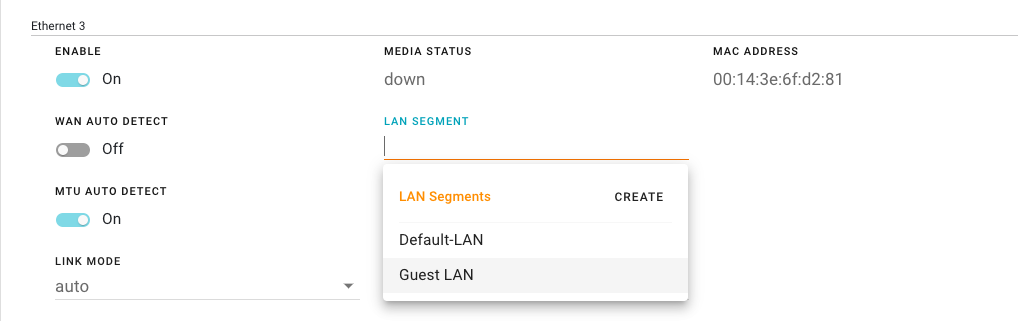
Set MTU, if required. When the interface is part of a LAN Segment, MTU is set to Auto. When in WAN mode, you can manually configure the MTU as directed by your service provider if you have packet loss due to network fragmentation issues.
Set the LINK MODE, if required. LINK MODE configures the Ethernet port speed and duplex setting. The default setting enables the device you are connecting to, to automatically negotiate the speed and duplex setting with the AirLink router. However, if the connected device has a fixed setting, use this field to change the AirLink router setting to match that of the connected device. You may also lower the link speed to reduce power consumption for applications where the router runs from battery power, or to be compatible with devices that do not support auto negotiation.
Set MSS CLAMPING. MSS (Maximum TCP Segment Size) Clamping controls the maximum packet size used for TCP connections between a local (LAN-side) host and a remote host over the Ethernet WAN interface. MSS Clamping helps avoid possible issues with sending and receiving large TCP packets over the WAN interface when other standard MTU mechanisms do not appear to be working with your installation. The options are:
- Disabled (default)
- Auto — When set to Auto, the MSS is calculated based on the detected MTU (Maximum Transmission Unit) of the network path as discovered by Path MTU Discovery (PMTUD).
- Manual — MSS is clamped to the specified maximum value bi-directionally for all inbound (remote-to-LAN) and outbound (LAN-to-remote) TCP connections when the TCP session is established using the Ethernet interface.
Set MSS. When MSS CLAMPING is set to Manual, set the Maximum TCP Segment Size.
- Range is 1–2000 bytes (default is 1460)
Confirming Ethernet port configuration
You can check your Ethernet port configuration under Status/Monitoring > Dashboard.

For more detail, click on an Ethernet Port entry on the dashboard, and it will automatically take you to the Hardware Interfaces > Ethernet Interfaces > Configuration section.
You can also check your Ethernet port configuration under Hardware Interfaces > General > Configuration.

Under Hardware Interfaces > General > Configuration, you can:
- Enable or disable the interface
- Add the Ethernet interface to a LAN Segment (if WAN AUTO DETECT is off for that interface).
You can configure the Ethernet interface for WAN mode by leaving the LAN Segment field empty.