SIM Slot Management and Configuring SIM Failover
This page describes the SIM Slot Management features in AirLink OS. There are two functions of SIM Slot Management that you may find useful depending on your router model and application.
Manual SIM Switching
AirLink routers have two SIM card slots and can support a primary and secondary SIM card. By default, the upper SIM card (SLOT 1) is the primary SIM card.
For dual-radio routers such as the AirLink XR90 or XR80, the primary SIM card is used by the first cellular interface (“XP1” on the AirLink XR90, “Cellular” on the AirLink XR80), and the lower SIM card (SLOT 2) is used by the second cellular interface, if installed on the router (“XP2” on the XR90, “XP” on the XR80).
You can reassign the active SIM slot in the SIM SLOT MANAGEMENT table (under Hardware Interfaces > Cellular Interfaces > Configuration). For example, if you want the router’s “Cellular” interface to use the SIM card in SLOT 2, you can select SLOT 2 in the table’s Active Slot column.

Automatic SIM Switching
For a router with only one cellular interface (that is, a single-radio router such as the RX55), you can configure Automatic SIM Switching (also called SIM failover) to enable the cellular interface to use a different SIM card/SIM slot in response to changes in the cellular network state.
If the router has two cellular interfaces, SLOT 1 and SLOT 2 are assigned to each interface. Instead of configuring Automatic SIM Switching as a means to maintain connectivity when the cellular network state changes, you can configure one of the interfaces as a backup by configuring a Multi-WAN Policy.
On a single-radio router, switching between SIM cards and different network providers can take 5 to 10 minutes if different radio module firmware is required—the delay includes the time required to re-flash the radio module with the appropriate firmware image. During this time, the Cellular WAN interface connection will be interrupted.
To switch between network providers more quickly, you can add a second radio module (AirLink XR80 and XR90 routers only) for the secondary provider. In this case, the switch can take under a second to complete.
Table of Contents
 Initializing Table Of Contents...
Auto SIM Switching Pre-configuration
Ensure the appropriate radio module firmware (RMFW) images are present on the router. You can check this under System > Admin > Radio Module Image Management.

If the router came from the factory with the latest release, all the required radio module firmware (RMFW) should be present. Otherwise, add the desired RMFW image and run a software update to the same AirLink OS version to populate the RMFW image.
If any SIMs being used in failover for a fleet of routers require a special configuration (such as Multi-APN or Manual APN), you must create a SIM Template that you can apply to other routers using a device template. For more information, see Using the SIM Database and SIM Templates.
Configuring Auto SIM Switching
If your single-radio router has two SIM cards installed, you can configure the conditions for which the router automatically switches the SIM card being used for network connectivity.
To configure Auto SIM Switching, click  in the SIM SLOT MANAGEMENT table and enter the timeout settings that will trigger a SIM switch.

The configurable cases are Roaming Timeout, Service Scan Timeout, Service Lost Timeout and Secondary Slot Timeout. These settings work together, so it’s important to plan how you want automatic SIM switching to work before configuring these fields in order to reduce network downtime on the cellular interface.
| SETTING | DESCRIPTION | RANGE |
|---|---|---|
| ROAMING TIMEOUT |
If the router has been roaming on a different carrier’s network for longer than the time (in minutes) configured in this field, the router automatically switches to the inactive SIM card. This option is useful if the router frequently crosses an international border where there are different Mobile Network Operators in each country. You can set up the router with two SIM cards: one for a Mobile Network Operator in each country. The router then automatically switches to the SIM that is not roaming (after a configured delay) whenever the router crosses the border. |
1–65535 min |
| SERVICE SCAN TIMEOUT |
If the router’s cellular interface has been trying to connect to a network for more than the configured time (in minutes), the router switches to the inactive SIM card. The router will switch SIM cards if the cellular interface has no service after:
The automatic SIM switch is initiated if the router is unable to establish a data connection or if the SIM card is unable to register on the network. If this is a new SIM card, check that the APN in Use is correct and that it is able to register on the network. |
1–65535 min |
| SERVICE LOST TIMEOUT |
If the network’s data connection is lost for more than the configured time (in minutes), the router switches to the inactive SIM card. The timeout starts if the Cellular ADAPTER STATUS is not CONNECTED OR the associated MONITOR RULE (see below) has not received a ping response. The timeout continues if the cellular interface restarts after an associated MONITOR RULE’s ping test fails, triggering an action. See Configuring the Network Watchdog. The timeout resets if the Cellular ADAPTER STATUS is again CONNECTED OR the associated MONITOR RULE receives a single ping response. |
1–65535 min |
| MONITOR RULE (TRAFFIC MONITOR FOR SERVICE LOST EVALUATION) |
This setting is available when SERVICE LOST TIMEOUT is configured. Select an associated Network Watchdog Monitor Rule that will trigger the SERVICE LOST TIMEOUT to start. Click CREATE to create a new monitor rule. The Monitor Rule must monitor the Cellular interface. To configure a Monitor Rule, see Configuring the Network Watchdog. 
|
n/a |
| SECONDARY SLOT TIMEOUT |
If the router has been using the secondary SIM card for the time configured in this field (in minutes), the router automatically switches back to the primary SIM card. This allows you to configure the router to fall back to the primary network if, for example, the data rate is better on the primary network. Note that the router will switch SIM cards again if the Service Lost Timeout threshold is met again. Example: After switching back to the primary SIM card (with the Service Lost Timeout set to 30), if there is a service loss for 30 minutes, the SIM will switch to the secondary SIM card and the SECONDARY SLOT TIMEOUT begins again. |
1–65535 min |
Service Loss Example
In this example, the desired outcome is to use the primary SIM card (for example, a less expensive network connection) whenever possible, but if necessary, to switch to the secondary SIM card to maintain the data connection.
The Network Watchdog and Cellular Watchdog are both disabled or configured for a longer interval than the Service Loss Timeout, which enables SIM switching to persist. The watchdogs may prompt the router to reboot, which causes the router to revert to using the primary SIM card.
For single-radio routers such as AirLink XR60 and RX55, switching to the secondary SIM also loads the appropriate radio module firmware for the secondary SIM card.
The Edit SIM Management example below is from an AirLink XR90, but other AirLink routers have the same settings.

With this configuration:
- If the router loses the data connection on the primary SIM card for 20 minutes, it switches to the secondary SIM card.
- For single-radio routers, switching to the secondary SIM also loads the appropriate radio module firmware for the secondary SIM card.
- If the router connects to the network using the secondary SIM card, it uses the secondary SIM card for 60 minutes and then attempts again to connect to the primary SIM card’s network.

- If the router establishes a connection on the secondary SIM card, it will remain on this SIM card for up to 60 minutes unless service is lost for more than 20 minutes on the secondary SIM card’s network.

After the switch to the secondary SIM card, if the router cannot connect to the secondary network for a continuous period of 10 minutes (the Service Scan Timeout), it attempts to reconnect using the primary SIM for another 10 minutes.
The first example below shows the router losing service on the primary SIM card. After the Service Loss Timeout expires, the router attempts to use the secondary SIM card for 10 minutes. After the Scan Timeout on the secondary SIM card expires without the router establishing a connection, the router switches back to the primary SIM card, where network service has been restored. The router reconnects.

The second example below shows the router losing service on the primary SIM card. After the Service Loss Timeout expires, the router attempts to use the secondary SIM card for 10 minutes. After the Scan Timeout on the secondary SIM card expires without the router establishing a connection, the router switches back to the primary SIM, where network service has not been restored. The router attempts to connect using the primary SIM for another 10 minutes.
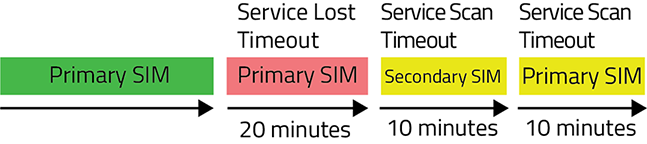
The “service loss” used for automatic SIM switching is based on network information about the cellular connection. You can also use the Network Watchdog to trigger the change in cellular network state. This enhances your network monitoring capability by sending pings to a configured IP address to confirm your end-to-end connection. If the ping test fails, then the Service Lost Timeout begins, followed by the SIM switch. To configure a Monitor Rule, see Configuring the Network Watchdog.
Roaming example
In this example, the desired outcome is to avoid roaming as much as possible, but to maintain a data connection if the roaming network is the only one available.
The Edit SIM Management example below is from an AirLink XR90, but other AirLink routers have the same settings.

With this configuration:
- If the router is roaming on the primary SIM for 10 minutes, it switches to the secondary SIM.

- If the secondary SIM card’s network is not immediately available, the router continues to attempt to connect for 30 minutes. If, after 30 minutes, the router is still unable to establish a data connection with the secondary SIM, the router switches back to the primary SIM.

Testing SIM Failover
To test SIM Failover, you can try the following methods of simulating a service failure:
- Unplug the cellular antenna(s) for the primary cellular interface.
- In AirLink OS, set an incorrect manual APN for the primary cellular interface.
In each case, wait for the configured “Service Lost Timeout” and observe whether the SIM card in the secondary SIM slot connects to its service provider’s network.