Searching...
Configuring USB Interfaces
The AirLink RX55 is equipped with a USB 2.0 Micro-B connector. This page describes how to:
- configure the USB interface
- create a USB network connection on a Windows or MacOS computer.
Sierra Wireless recommends that you use a USB 2.0 cable with your AirLink RX55 and connect directly to your computer for best throughput.
Configuring a USB Interface

- ENABLE or disable the interface. The USB interface is enabled by default.
- LAN SEGMENT: Click
 to select, or create, a different LAN segment for the interface.
 to select, or create, a different LAN segment for the interface.
- MTU AUTO DETECT is always On when USB is connected to a LAN segment.
- MTU: When the interface is part of a LAN segment, MTU is set to Auto.
- MSS CLAMPING: MSS (Maximum TCP Segment Size) Clamping controls the maximum packet size used for TCP connections between a local (LAN-side) host and a remote host over the USB WAN interface. MSS Clamping helps avoid possible issues with sending and receiving large TCP packets over the WAN interface when other standard MTU mechanisms do not appear to be working with your installation. The options are:
- Disabled (default)
- Auto — When set to Auto, the MSS is calculated based on the detected MTU(Maximum Transmission Unit) of the network path as discovered by Path MTU Discovery(PMTUD).
- Manual — MSS is clamped to the specified maximum value bi-directionally for all inbound (remote-to-LAN) and outbound (LAN-to-remote) TCP connections when the TCP session is established using the USB interface.
- MSS: When MSS CLAMPING is set to Manual, set the Maximum TCP Segment Size.
- Range is 1–2000 bytes (default is 1460)
Configuring a USB Network Connection to a Computer
The router in the examples below has the default LAN address set to 192.168.80.0/24 and IPv6 is enabled.
Windows 10
- Plug in a data-capable USB 2.0 cable between your Windows 10 computer and the router. Your computer will require an Internet connection to proceed.
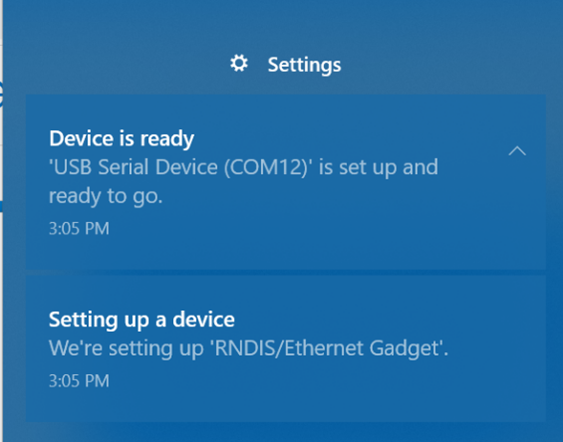
Your Windows 10 computer indicates that it is setting up a virtual COM port, and confirms when the installation is complete. You can verify the status in the Notification Center.
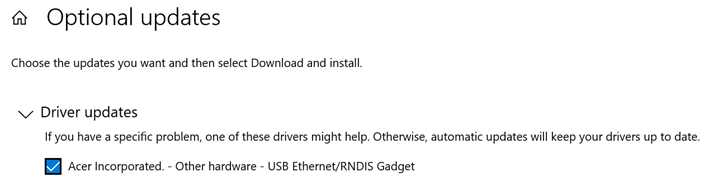
Go to Windows Updates and check for Optional Updates and select the Acer Incorporated – Other Hardware – USB Ethernet/RNDIS Gadget. (This may not be available if your computer uses an internal corporate Windows update server.)
Note: The USB Ethernet/RNDIS Gadget can also be downloaded from Microsoft.
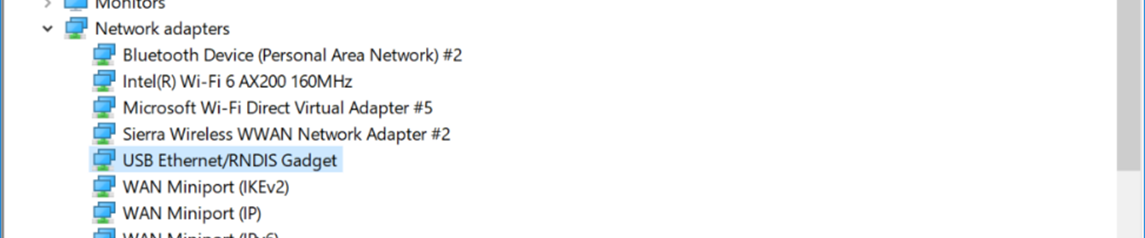
After this initial setup, you can use the Device Manager to verify the presence of the “USB Ethernet RNDIS Gadget” in the Network Adapters list.
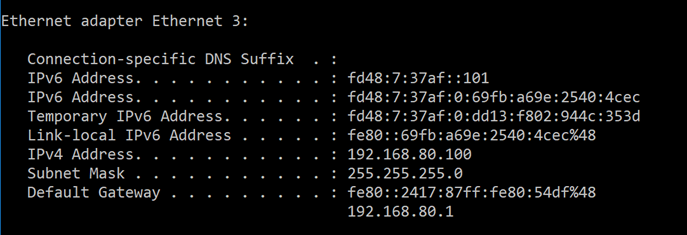
To confirm that the network is available and the adapter has been assigned address(es), open a Command prompt window and type ipconfig.
MacOS Big Sur (tested on 11.2.3)
- Plug in a USB 2.0 cable between your MacOS computer and the router. Your computer will require an Internet connection to proceed.
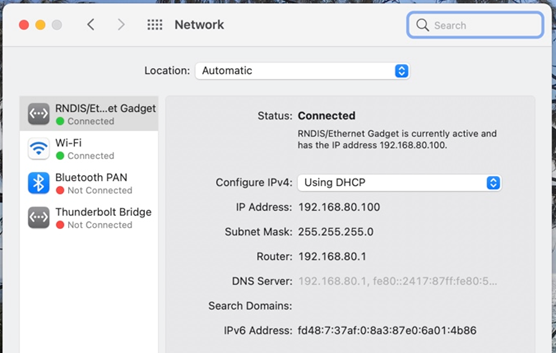
In System Preferences, open the Network center and verify that the RNDIS/Ethernet Gadget appears and is connected.