Configuring Web Settings
The Web Settings allow you to set up what happens when a client connects to the device.
Under Services > Web, you can configure the AirLink OS Web settings as shown below:
 Initializing Table Of Contents...
WAN Access Settings

The following settings can be configured for AirLink OS WAN access.
| SETTING | DESCRIPTION | RANGE | DEFAULT |
|---|---|---|---|
| HTTP ACCESS | Configure HTTP AirLink OS WAN access | Enable, Disable, Redirect to HTTPS | Redirect to HTTPS (RECOMMENDED) |
| HTTP PORT | Configure HTTP port for Airlink OS WAN access | 1 to 65535 | 80 |
| HTTPS ACCESS | Configure HTTPS Airlink OS WAN access | Enable/Disable | Enable |
| HTTPS PORT | Configure HTTPS port for Airlink OS WAN access | 1 to 65535 | 443 |
| HTTPS CERTIFICATE |
If using HTTPS, click  to select and/or create a security certificate. See Security Certificates Documentation here on how to create a PEM certificate. For HTTPS, only a certificate and private key is required. Certificate, private key and root can be used, but root will be ignored. Root only certificates will not work. to select and/or create a security certificate. See Security Certificates Documentation here on how to create a PEM certificate. For HTTPS, only a certificate and private key is required. Certificate, private key and root can be used, but root will be ignored. Root only certificates will not work.
|
N/A | N/A |
| HSTS | HTTP Strict Transport Security | Off/On | On |
Session Settings

| SETTING | DESCRIPTION | RANGE | DEFAULT |
|---|---|---|---|
| SESSION IDLE TIMEOUT | The amount of idle time required before the user is automatically logged out and redirected to the login screen. | 1 to 1440 mins | 5 mins |
| MAXIMUM LOGIN ATTEMPTS | The number of failed login attempts allowed before the user account is temporarily locked for the length of time specified in the UNLOCK TIME field. Disabling this feature is not recommended. | 0 (disabled) to 5 | 3 |
| UNLOCK TIME | The length of time that the user account is locked after the maximum number of failed login attempts. | 1 to 3600 seconds (1 hour) | 120 seconds (2 minutes) |
Remote Authentication Settings

The following settings can be used to configure login using secure LDAP, RADIUS, and TACACS+ authentication schemes. This enables enterprise IT managers to centrally manage access to AirLink routers and produce an audit trail showing which users logged into specific devices and when.
Note:
You can configure any or all of these schemes at the same time. When more than one scheme is configured, the authentication is successful if at least one of the schemes authenticates the user.
Successful authentication can take time. For example, if you have all three authentication schemes enabled, AirLink OS first attempts to reach the LDAP server. If it is unable to reach the LDAP server in the configured timeout period, it abandons the attempt and tries to reach the RADIUS server. If that server is unreachable after the timeout period, it then tries to reach the TACACS+ server. If none of the servers are reachable in the configured timeout periods, AirLink OS falls back to AirLink OS user name and password authentication.
AirLink OS uses LDAP, RADIUS, and TACACS+ to provide user authentication which will grant valid user administration rights to the AirLink router settings. Authorization is not configurable though these tools and therefore care should be taken to ensure that LDAP, RADIUS, and TACACS+ users are authorized to modify the device settings.
LDAP Client Settings
This section enables the configuration of LDAP version 3 servers for use by the AirLink router to perform user authentication.
To configure LDAP:
- Go to Web > Authentication > LDAP CLIENT.
- Click the blank field, and then click CREATE.

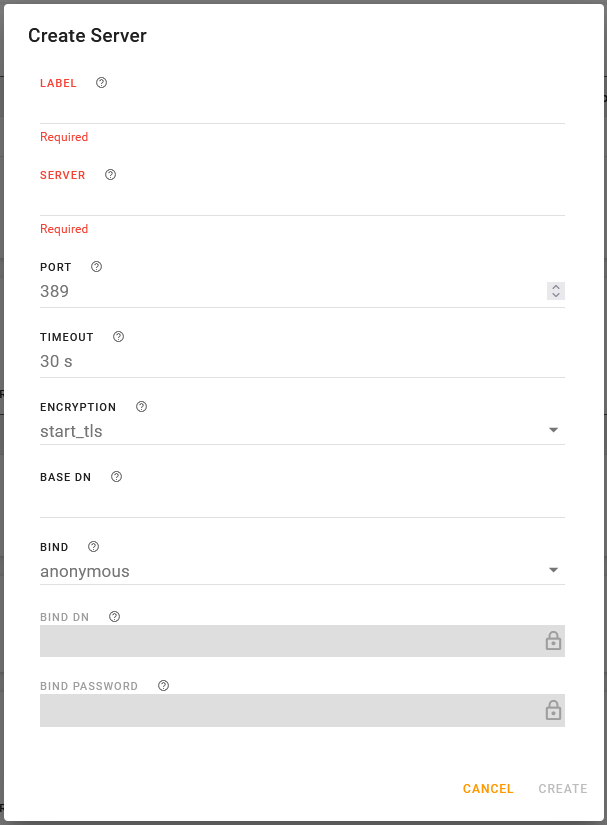
- In Create Server, configure the settings described in the table below.
- Click CREATE.
The server you configure here will also appear under System > User Accounts > LDAP.
| SETTING | DESCRIPTION | RANGE | DEFAULT |
|---|---|---|---|
| LABEL | Required name for the LDAP server | N/A | N/A |
| SERVER | Required LDAP server IP address or resolvable domain name | N/A | N/A |
| PORT | Port number | 1 to 65535 | 389 |
| TIMEOUT |
The time limit for the server to respond. |
1 to 60 seconds | 30 seconds |
| ENCRYPTION | Encryption type. |
|
start_tls |
| BASE DN | The Base DN is the path in the LDAP tree to the list of users (for example, dc=semtech,dc=com). This is where the LDAP protocol searches for a matching user to authenticate. | N/A | N/A |
| BIND | Choose how the LDAP search is done |
|
anonymous |
| BIND DN |
This setting is available when BIND is set to explicit. Enter the full path of the user authorized to perform requests in the LDAP database (for example, cn=admin,dc=semtech,dc=com) |
N/A | N/A |
| BIND PASSWORD |
This setting is available when BIND is set to explicit. Enter the password associated with the Bind DN user. |
N/A | N/A |
RADIUS Client
This section enables the configuration of the Remote Authentication Dial In User Service (RADIUS) which uses UDP to perform user authentication with a shared key.
To configure RADIUS:
- Go to Web > Authentication > RADIUS CLIENT.
- Click the blank field, and then click CREATE.

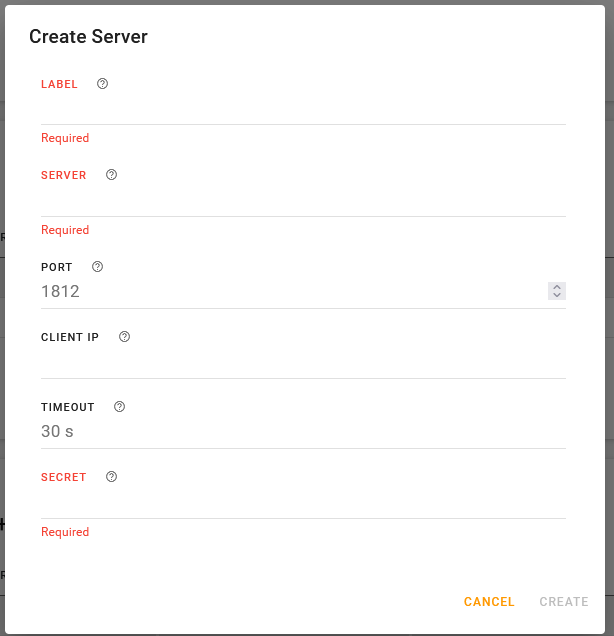
- In Create Server, configure the settings described in the table below.
- Click CREATE.
The server(s) you configure here will also appear under System > User Accounts > RADIUS. The server(s) will also be available to select as primary and backup RADIUS authentication servers for a Wi-Fi access point using WPA2-Enterprise security mode.
| SETTING | DESCRIPTION | RANGE | DEFAULT |
|---|---|---|---|
| LABEL | Required name for the RADIUS server | N/A | N/A |
| SERVER | Required RADIUS server IP address or resolvable domain name | N/A | N/A |
| PORT | Port number | 1 to 65535 | 1812 |
| TIMEOUT |
The time limit for the server to respond Note: If the server does not respond during the timeout, the authentication fails and the next enabled authentication mechanism checks the credentials. |
1 to 60 seconds | 30 seconds |
| SECRET | Shared secret for configured server | N/A | N/A |
TACACS+ Client
This section describes the configuration settings for Terminal Access Controller Access-Control System Plus (TACACS+) that uses the TCP protocol to authenticate users.
To configure TACACS+:
- Go to Web > Authentication > TACACS+ CLIENT.
- Click the blank field, and then click CREATE.

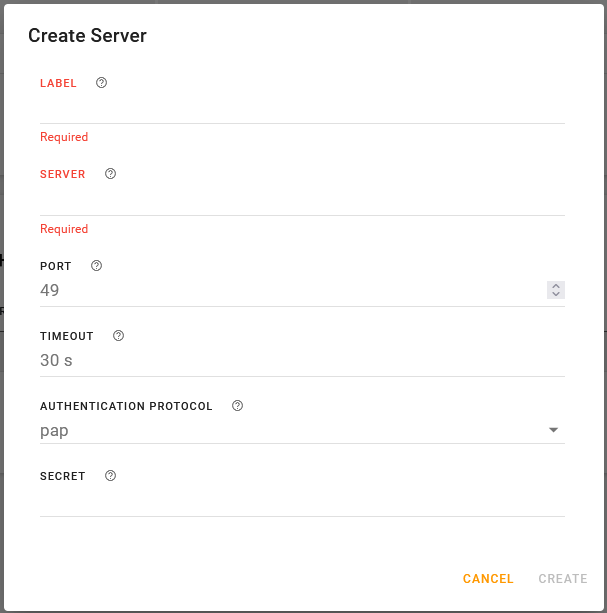
- In Create Server, configure the settings described in the table below.
- Click CREATE.
The server you configure here will also appear under System > User Accounts > TACACS+.
| SETTING | DESCRIPTION | RANGE | DEFAULT |
|---|---|---|---|
| LABEL | Required name for the TACACS+ server | N/A | N/A |
| SERVER | Required TACACS+ server IP address or resolvable domain name | N/A | N/A |
| PORT | Port number | 1 to 65535 | 49 |
| TIMEOUT |
The time limit for the server to respond Note: If the server does not respond during the timeout, the authentication fails and the next enabled authentication mechanism checks the credentials. |
1 to 60 seconds | 30 seconds |
| AUTHENTICATION PROTOCOL | The type of bind used for authentication |
|
PAP |
| SECRET | Shared secret for configured server | N/A | N/A |
Editing or Adding Remote Authentication Servers
After you have configured a remote authentication server, you can click  to edit the configuration.
You can also add another server configuration by clicking  (Clear), clicking the empty field, and then clicking CREATE.

If multiple servers are configured, you can select a different server by clicking
(Clear), clicking the empty field, and then selecting the desired server.

To delete a server, you can click
to edit the configuration and then click DELETE at the bottom of the Edit Server page.
You cannot delete the server if it is being used elsewhere in the router configuration. For example, it may be part of a Wi-Fi interface configuration. To delete the server, you must first disable it where it is being used in the router configuration.
Legal texts
This section allows you to define up to two messages on the login screen. The messages support markdown.

Note: Any text shown on the login screen will be visible without authentication.
| SETTING | DESCRIPTION |
|---|---|
| LEGAL TEXT INSIDE LOGIN ZONE | This will display the text inside the login zone under the SIGN IN button |
| LEGAL TEXT OUTSIDE LOGIN ZONE | This will display the text outside the login zone |
Example:
