Configuring Cellular Interfaces
The AirLink XR90 has two SIM card slots that support the XP1 and XP2 cellular interfaces. By default, the SIM card in the upper slot (slot 1) is the XP1 SIM card.
The XR90 also has an LPWA Cellular interface, equipped with a Sierra Wireless Ready to Connect (R2C) eSIM, that provides a connection to AirVantage.
To configure cellular interfaces, go to Hardware Interfaces > Cellular Interfaces > Configuration.
Table of Contents
 Initializing Table Of Contents...
XP1 and XP2 Cellular Configuration
Not all the settings shown below appear when the router is operating without a SIM card installed.
Click Show more > to display all the settings shown below.
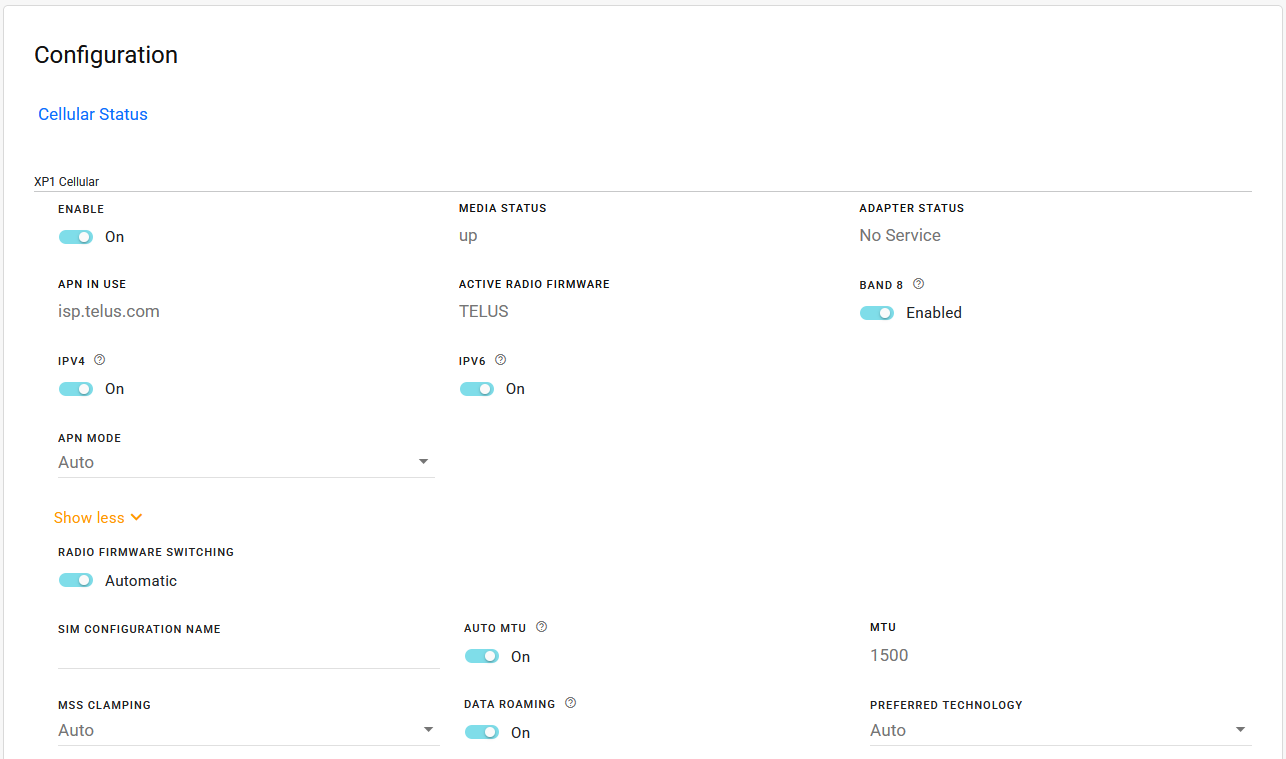
- ENABLE: Turns the cellular interface On or Off. When Off, the Adapter Status changes to Standby.
- MEDIA STATUS: Status of the network connection. This reports whether the antenna is present and a cellular network signal is detected. In some cases, the router may get a cellular network signal even when the antenna is not connected.
- ADAPTER STATUS: Cellular radio and connectivity status can have the following values.
- Initializing: Initiating communication between AirLink OS and the radio module
- Initializing SIM: Reading the SIM card and managing its configuration
- Check Manual Radio Firmware: Validating that the required radio module firmware (if Radio Firmware Switching is set to “Manual”) is present and active
- Check Radio Carrier: Validating that the required radio module firmware (as defined by the SIM card and the Radio Firmware Switching settings) is present and active
- MultiApn: Checking whether the SIM configuration requires the Cellular interface to operate in Multi APN mode
- Configuring: Configuring the radio for connection (APN, for example)
- Connecting: Radio is connecting to the network
- Connected: Radio has connected to the network and can pass traffic
- Standby: The cellular interface is Off (using the Enabled button), or it is enabled and no cellular network signal has been detected yet
- Wait For Update: Waiting for radio update if requested during Check Radio Carrier, for instance
- Stopped: A problem occurred when AirLink OS tried to initialize the radio (with SIM card inserted) to get on air. To restore operation, reboot the router.
- Monitoring Virtual: The adapter is in Multi APN mode, with configured virtual APNs
- No Service: The radio is enabled and able to detect a cellular network signal but cannot get any service (2G, 3G, 4G, or 5G). The antenna may be disconnected or faulty, or the SIM card has been deactivated.
- APN IN USE: The APN in use for the current mobile network connection.
- ACTIVE RADIO FIRMWARE: Shows which radio firmware is active.
- BAND 8: By default, LTE band 8 (including 5G n8) is available for the router to use to connect to the cellular network. Disable this setting to prevent band 8 from being used to connect to the network.
- IPV4: Turn On to allow the mobile network to assign the router an IPv4 address. Turn Off to disable IPv4.
- IPv6: Turn On to allow the mobile network to assign the router an IPv6 address. The IPv6 address and routing information are passed to the LAN clients so that they can acquire IPv6 addresses and pass IPv6 traffic over the mobile network. Turn Off to disable IPv6.
- APN MODE: Auto, Manual, Multi
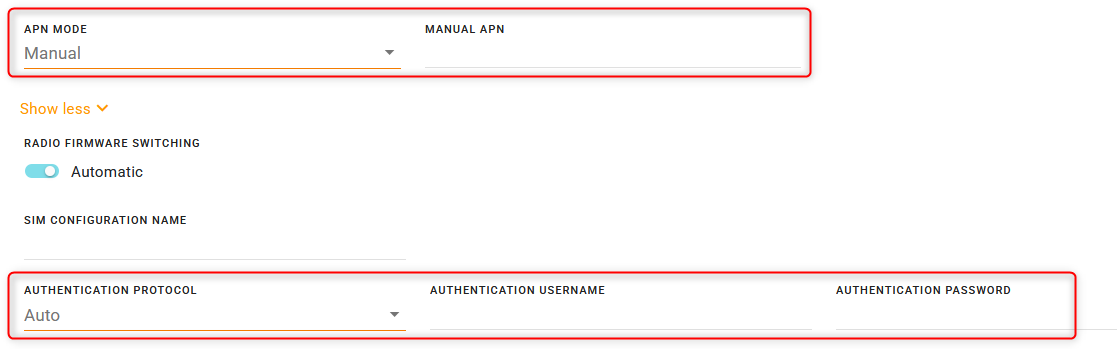
If the router does not automatically connect to the network, contact your Mobile Network Operator to confirm the APN and activation status of your router. You may need to set APN MODE to manual and enter your carrier’s APN and other credentials.
When APN MODE is set to Manual, you may need to set one or more of the following:
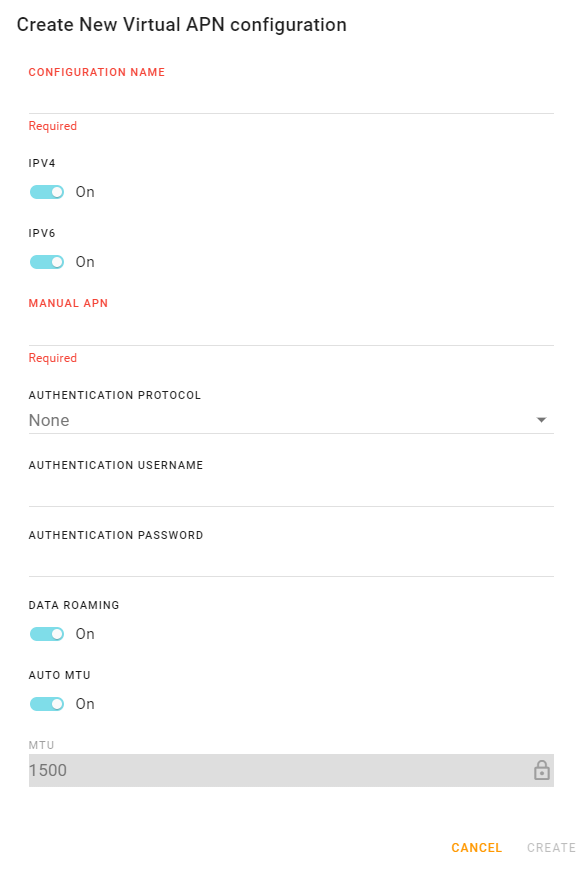
- MANUAL APN: The carrier network may assign an APN and allow the router to connect without specifying a manual APN.
- AUTHENTICATION PROTOCOL: If required by your carrier. Options are: None, PAP, CHAP, AUTO
- AUTHENTICATION USERNAME: If required and provided by your carrier
AUTHENTICATION PASSWORD: If required and provided by your carrier
RADIO FIRMWARE SWITCHING: By default, the router automatically selects the radio module firmware. To force the router to use a radio module firmware for a different carrier, change RADIO FIRMWARE SWITCHING to Manual, and then select a radio firmware from the list.
- Automatic: The router automatically selects and uses the appropriate radio module firmware for the active SIM card. (default)
- Manual:The router does not automatically select the appropriate radio module firmware when it is powered on or rebooted. You must select the radio firmware.
SIM CONFIGURATION NAME: By default, the XP1 and XP2 SIMs and associated configuration are included in the SIM Database. You can enter a name for the SIM Configuration in this field. The name appears in the SIM Database.
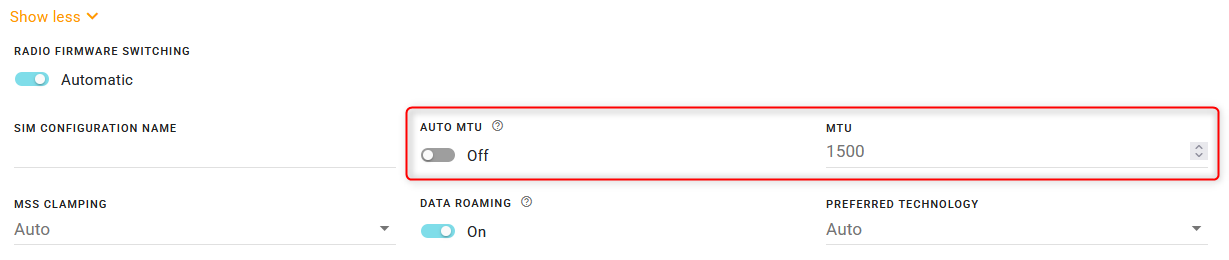
AUTO MTU: By default, AUTO MTU is On. You can turn AUTO MTU off and manually configure MTU (Maximum Transmission Unit in bytes) if you have VPN issues, and as directed by your service provider.
MSS CLAMPING: MSS (Maximum TCP Segment Size) Clamping controls the maximum packet size used for TCP connections between a local (LAN-side) host and a remote host over the cellular WAN interface. MSS Clamping helps avoid possible issues with sending and receiving large TCP packets over the cellular network when other standard MTU mechanisms do not appear to be working with your installation.
By default, MSS Clamping is set to Auto. It can also be set to Disabled, or to Manual. When set to Manual, you can set the Maximum TCP Segment Size (range is 1–2000 bytes, default is 1460).

DATA ROAMING: Enables or disables roaming on the active SIM. When OFF, the active SIM does not use data when roaming.
PREFERRED TECHNOLOGY: Restricts the router to using a specific cellular technology: Auto (default), 3G Only, 4G Only, 5G-SA Only (5G Standalone).
LPWA - Out-of-Band Management

On the LPWA - Out-of-Band Management page you can enable/disable the LPWA (R2C eSIM) interface and view status information.
- ENABLE: Turn the LPWA interface on or off
- MEDIA STATUS: Status of the antenna link connection. This reports whether the antenna is present and a cellular network signal is detected. In some cases, the router may get a cellular network signal even when the antenna is not connected.
ADAPTER STATUS: AirLink OS communication status with the cellular radio after a media signal is detected.
- Initializing
- Initializing SIM
- Check Radio Carrier
- Configuring
- Connecting
- Connected
- Standby
- Wait For Update
APN IN USE: The APN in use for the current mobile network connection.
MTU: The MTU Transmission Unit in use
SIM Slot Management
The AirLink router has two SIM card slots and is capable of supporting a primary and secondary SIM card. By default, the SIM card in the upper slot (slot 1) is the primary SIM card.
For more information on SIM Slot Management, see SIM Slot Management and Configuring SIM Failover.

Multi-APN Configuration
When using a SIM that allows for multiple APNs, you can configure additional APNs.
To configure an additional APN:
Under APN MODE, select Multi.
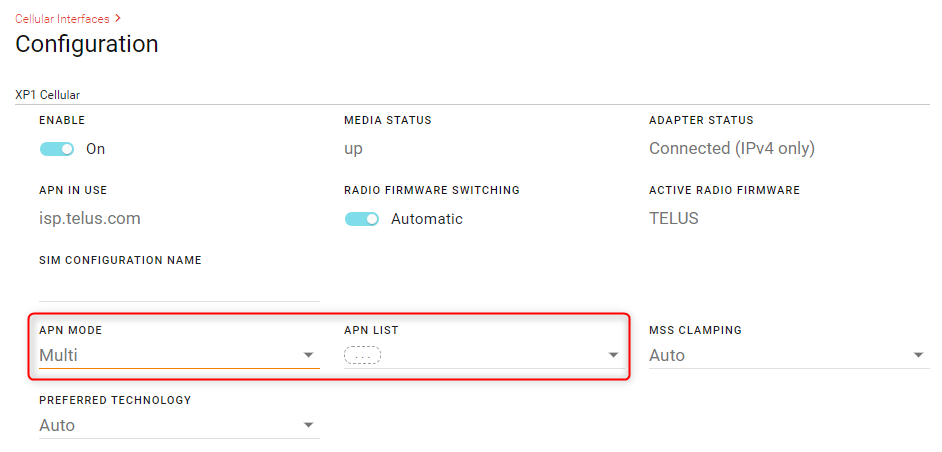
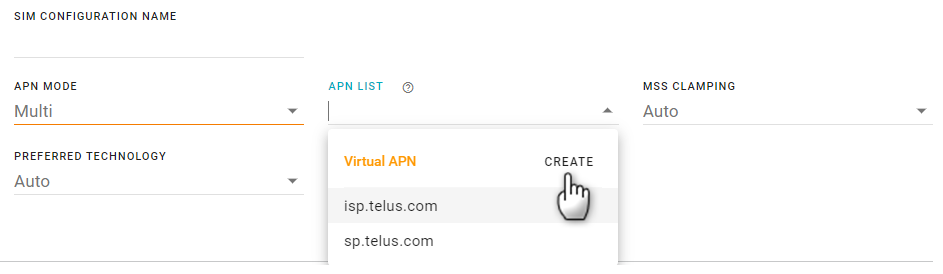
In the APN List, click CREATE. The Create New Virtual APN configuration screen appears.
Configure the APN settings and then click CREATE.
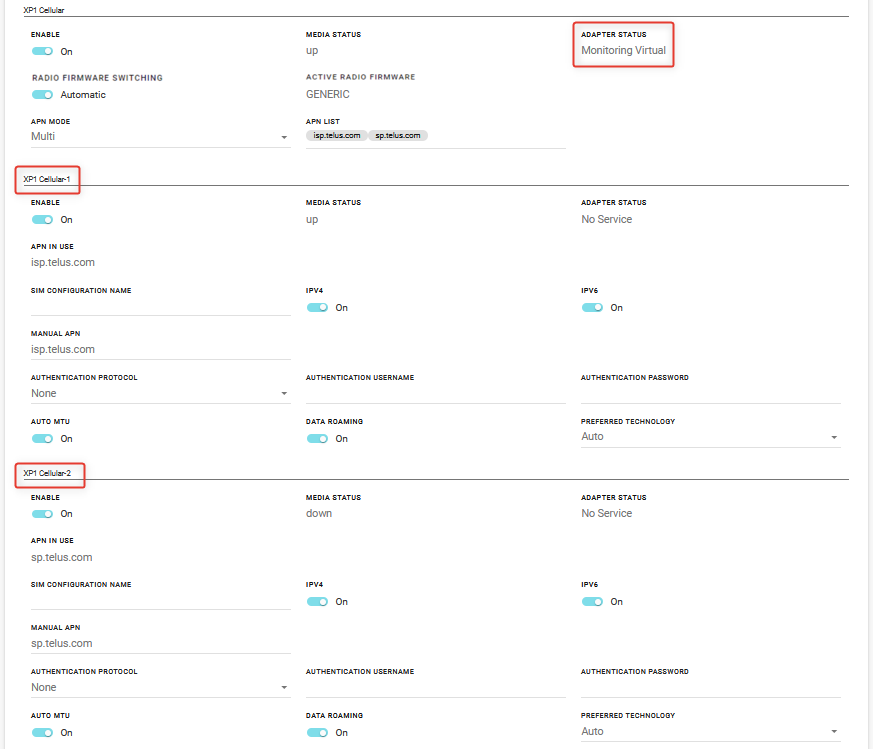
You will see the Cellular Interface settings for each new APN that you create below the “parent” Cellular interface. The parent Cellular interface status becomes Monitoring Virtual.
In the example below, the default cellular interface XP1 has sub-interfaces XP1 Cellular-1 and XP1 Cellular-2. These additional APNs are the potentially active interfaces.