Updating AirLink OS Software
To take advantage of new features available in the latest version of AirLink OS, update the software on your AirLink routers.
You can update one router at a time through a local connection to the AirLink OS UI, or you can use AirLink Management Service (ALMS) or AirLink Mobility Manager (AMM) to update one or multiple routers at the same time. For information on software updates using ALMS, see the Firmware Upgrade section of the AirVantage documentation.
The AirLink OS software and radio module firmware are included in the .ufw file provided by Semtech.
 Initializing Table Of Contents...
Updating the Software
Do not power off or manually reboot the router during a software upgrade. Wait until the router’s LED chase patterns have stopped (the LEDs will flash yellow during a software upgrade, then green if the radio module firmware is being updated) before unplugging or rebooting the router. See Reading Router LED Colors and Patterns.
To update AirLink OS software using the local UI:
- Download the latest .ufw file provided by Semtech on the Source.
- In AirLink OS, go to System > Admin > Software Update.
Click SOFTWARE UPDATE.
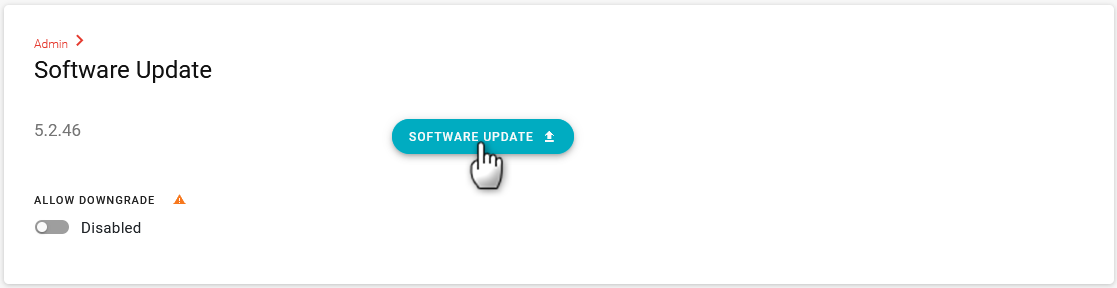
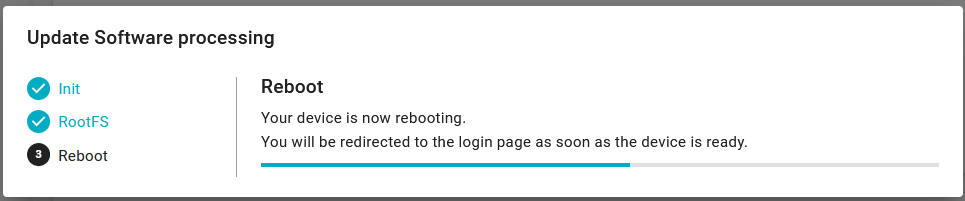
Select the .ufw file and click Open. The progress bar shows each step of the update process, followed by your router rebooting. The number of steps may vary depending on the size of the software update.
Do not power off the router during upgrade, including while in the reboot stage. Depending on the complexity of the software upgrade, the router may be in the reboot state for two minutes or more. If a radio module firmware upgrade is part of the process, the upgrade process will take longer than a basic OS-only upgrade. The upgrade may still be in progress even after you have been redirected to the AirLink OS login page.
Allow Downgrade
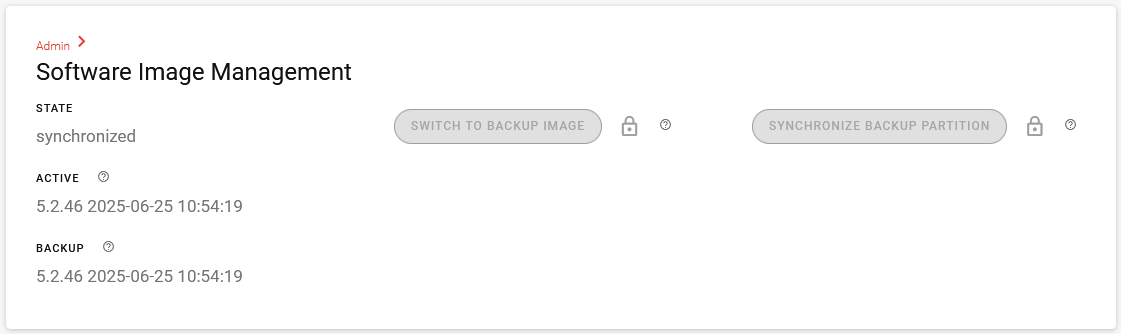
By default, software downgrades are disabled. If you must revert to a previously installed AirLink OS software, you can use SWITCH TO BACKUP IMAGE. See Software Image Management below.
If you need to downgrade the router to a different AirLink OS release, you can click ALLOW DOWNGRADE to enable the downgrade. You can then click SOFTWARE UPDATE to install a previous AirLink OS release.
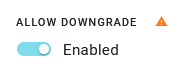
Downgrading software in this way will reset the router to factory defaults.
Software Image Management
After a software upgrade, AirLink OS stores the previous software image to use as a backup, along with the corresponding device configuration. In the event that the router switches to the backup image, the stored device configuration is also applied to the router.
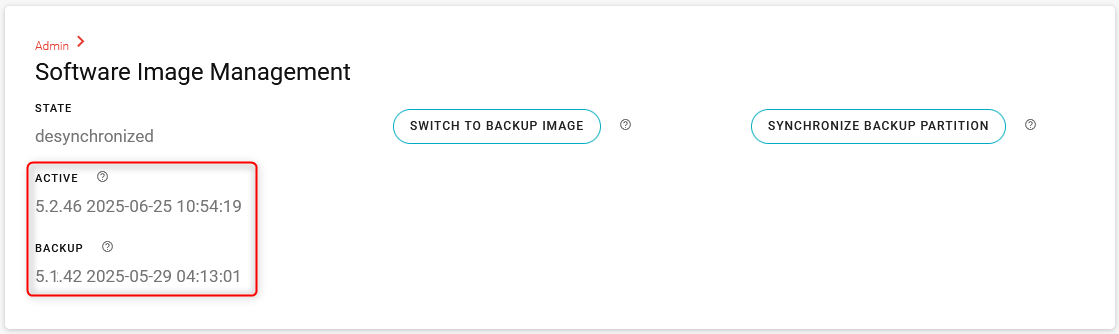
Switch to Backup Image
The SWITCH TO BACKUP IMAGE feature is intended as a last-resort action to return the router to a previously known operating state.
The router will automatically switch to the backup image if the router fails to successfully completely boot after five successive attempts for whatever reason; intermittent power or incomplete/corrupted software, for example. The switch will occur prior to the sixth boot attempt.
In addition to reverting to the last used software, switching to the backup image reverts any configuration changes made since the last software upgrade.
Important for customers using AirLink Mobility Manager: Switching to a backup image earlier than AirLink OS 5.3 will cause the router to lose registration and connection to the AMM. You must then reconfigure the router to connect to the AMM (see Configuring Routers for AMM for more information). For routers connected to the AMM, please ensure that the backup image is at version 5.3 or later.
To manually switch to the backup image:
- Click SWITCH TO BACKUP IMAGE.
The router reboots. The backup image is now the active image, and the previous router configuration takes effect.
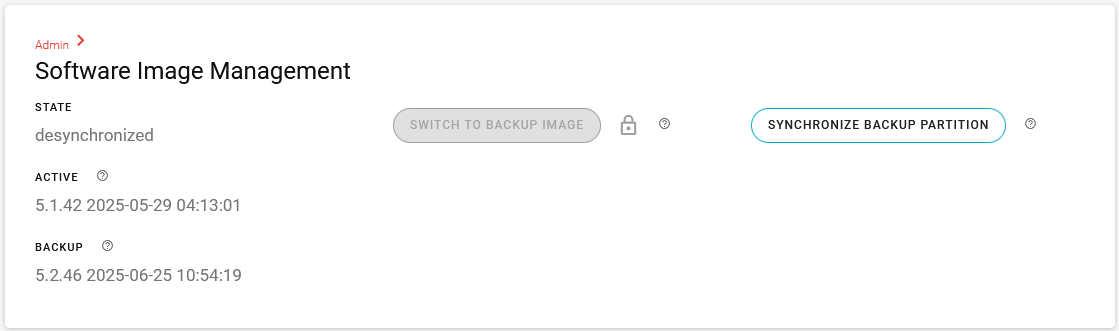
The SWITCH TO BACKUP IMAGE button is now disabled because the router is already running the backup image.
When the router is running the backup image as the active image, you must update the software again if you no longer want the router to use the backup image.
Synchronize Backup Partition
The SYNCHRONIZE BACKUP PARTITION feature should be used only if advised by Semtech support. This recommendation may change following a future AirLink OS release.
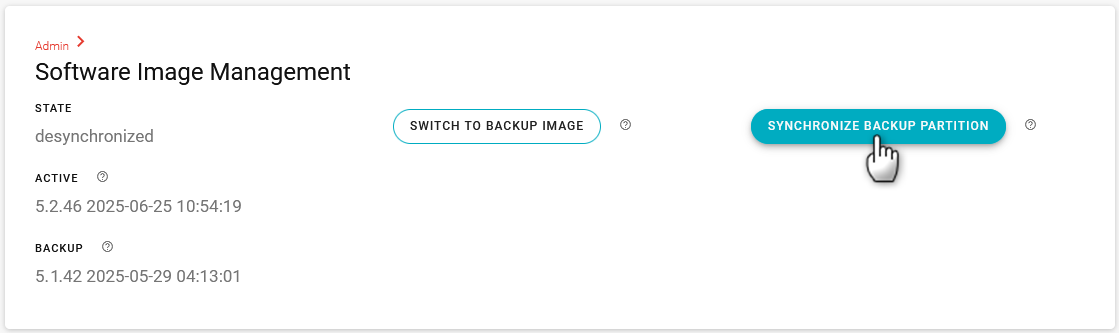
Clicking SYNCHRONIZE BACKUP PARTITION overwrites the previous backup image with the active image. Image switching is disabled (as shown below) until you update the software to a different version.
The SYNCHRONIZE BACKUP PARTITION process also deletes the router configuration that was stored with the previous backup image, and does not store the current configuration with the new backup image. The router configuration is stored along with the backup image only when a software upgrade occurs.