Getting Started & Features
What is AirLink OS?
AirLink OS is a powerful software application that enables you to configure, monitor, and analyze AirLink routers and associated applications/accessories. You can access AirLink OS directly over a physical or LAN connection to the device, or on ALMS and AMM.
 Initializing Table Of Contents...
Logging In
To access AirLink OS, first connect your laptop to a powered-up AirLink router with a USB or Ethernet cable. If the AirLink router is already installed with SIM card(s) and antennas, you may be able to access the router through a wireless LAN connection.
- Open a browser window and enter 192.168.1.1. Please bypass any certificate notifications in your browser.
The log in screen appears.
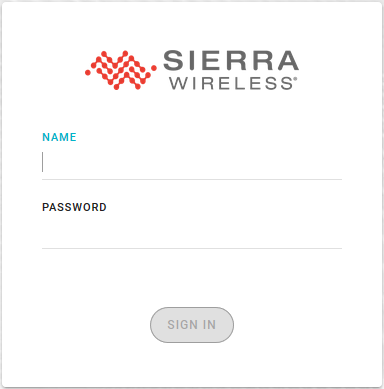
Enter your name and password. By default, the username is admin. The default password is printed on your device label.
Click SIGN IN.
For system security, ensure that you change the default password at System > User Accounts > Local. The new password must be at least 8 characters long and have 1 uppercase letter, 1 lowercase letter, 1 digit and 1 non-alphanumeric character.
Shortcuts for common tasks
At the top right of the AirLink OS screen, you’ll find several icons. Clicking an icon enables you to perform the common tasks described below.
| Feature | Icon | Description |
|---|---|---|
| Search |
|
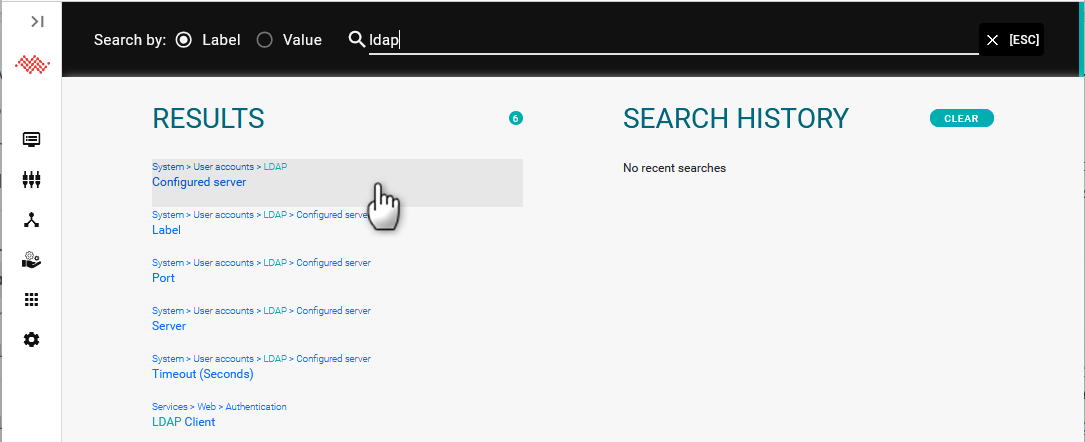
Click to search for a setting or value you want to configure or view. Enter a setting name like “LDAP” to find all settings that use that name, or enter a setting value like “IPv6” to find every place that value is entered. Press [ESC] to exit the Search results and return to the main screen. |
| Notifications |
|
Click the icon to view notifications. Notifications might include failed login attempts, configuration issues that may affect router performance, and other system information. |
| Template |
|
Click to create, modify or apply a device template. For more information, see Working with Device Templates. |
| Account |
|
Click to view account options, including account details and logging out of AirLink OS. |
| Account Details |
|
After clicking Account, click to go to System > User Accounts > Local to view or modify the accounts assigned to the router. |
| Logout |
|
After clicking Account, click to log out of AirLink OS. By default, AirLink OS logs you out after 5 minutes of inactivity. You can configure the Session Idle Timeout setting on the Services > Web > Session menu. |
| More |
|
Clicking the More icon allows you to enable Development Mode. |


Basic navigation
AirLink OS lists its main sections in a menu along the left. Clicking a section heading displays a list of all sub-sections on that page.
The menu across the top shows you the sub-sections of the page. Clicking a heading in the top menu takes you to that sub-section.
Note that AirLink OS provides links between some feature configuration pages and the corresponding status pages.
The AirLink OS interface is designed to show you the most essential configuration settings by default. You can expand some configuration pages by clicking Show more > links or by clicking
at the top of the page.
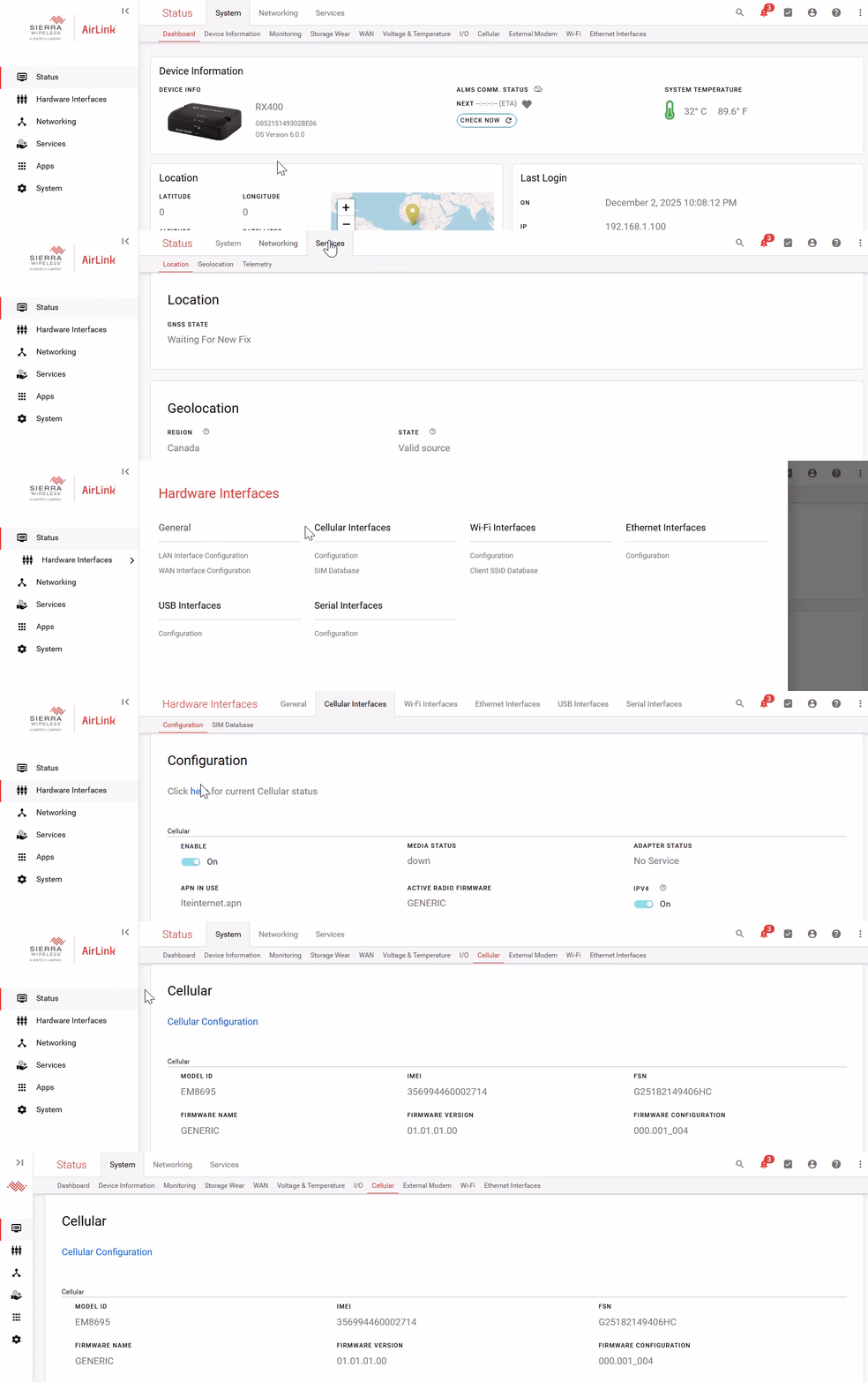
As mentioned above, using Search is the fastest way to find the settings you want. You can search by Label (the name of a setting or status item) or by Value (a setting’s value, such as an IP address or a port number).
Other tips
While you’re modifying settings in AirLink OS, the browser tracks and displays your progress with the status bar.

You can click the arrow (>) in the status bar to view every setting that you’ve modified so far. If you need to revert any of your changes-in-progress, click UNDO next to any of the individual lines or  to revert everything.
When you’re all done, click SAVE to push your changes to the router.
Configuring AirLink OS in ALMS
When managing AirLink routers using ALMS (AirLink Management Service), you can configure a router using the AirLink OS interface.
To configure a router in ALMS:
In ALMS, go to Monitor > Systems.
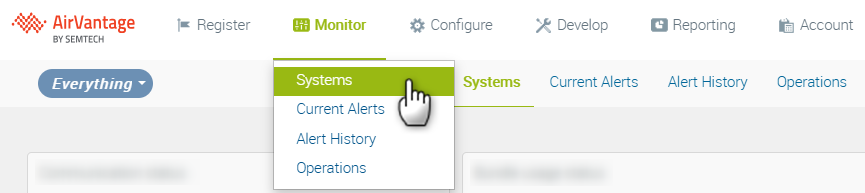
In the Systems table, click the router name.
In the router’s system view page, click Configuration.
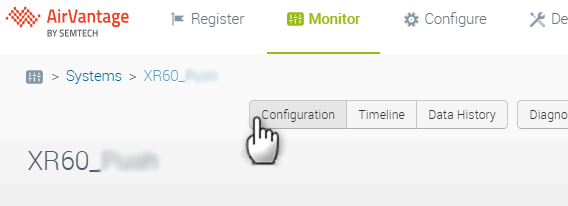
The AirLink OS configuration interface appears.
Configure the router’s settings and then click SAVE.
To exit the AirLink OS configuration, click the links at the top of the page, or go to Monitor > Systems.

Fast-Changing Data
The appearance and behavior of AirLink OS interface is the same whether you are viewing it in ALMS or viewing it on a laptop connected directly to the router, with this important exception.
Some status items in AirLink OS are not reported to ALMS by default. The data points associated with these items change frequently and would create excessive data usage on your ALMS account.
Fast-changing data includes:
- Standard GNSS positioning and statuses
- CPU load
- Memory usage
- Thermal or voltage data
- Networking > Neighbor table
When viewing the AirLink OS configuration in ALMS, fast-changing data is indicated by the  symbol. The data shown for these items does not refresh automatically in ALMS.
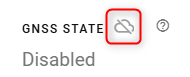
If you would like to have a fast-changing status item reported to ALMS, click
to add the data point to the Fast-changing Report dataset and then activate the Fast-changing Report rule.
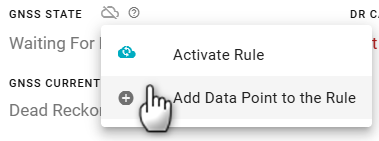
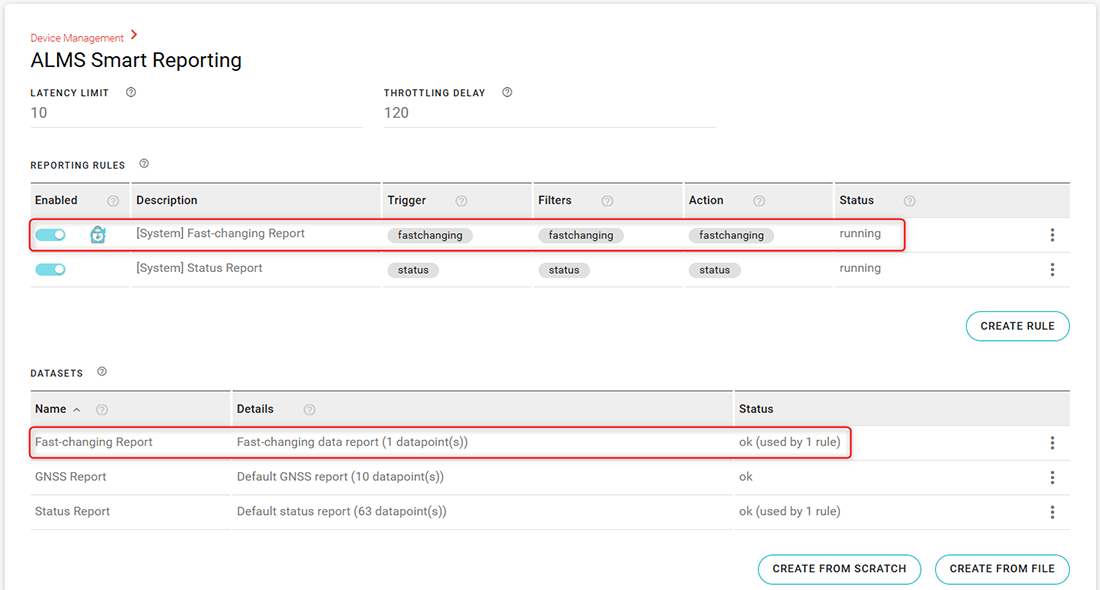
You can view the Fast-changing Report rule under System > Device Management > ALMS Smart Reporting.
Fast-changing data will be sent to ALMS based on the Latency Limit and Throttle Filter Conditions configured in ALMS Smart Reporting.