Configuring Wi-Fi
This page shows you how to configure Wi-Fi for your AirLink router in Access Point mode and Client mode.
This page shows examples from AirLink RX400 and AirLink EX400 routers. Both products have the same Wi-Fi features and functionality.
When configured as a Wi-Fi Access Point, multiple (up to 16) wireless devices can connect to the router and use the router’s WAN connection to access the network. The router can also be configured as a Wi-Fi Client where the router can connect to another Wi-Fi network to access the WAN, replacing the router’s previously active WAN connection.
 Initializing Table Of Contents...
Wi-Fi Interfaces
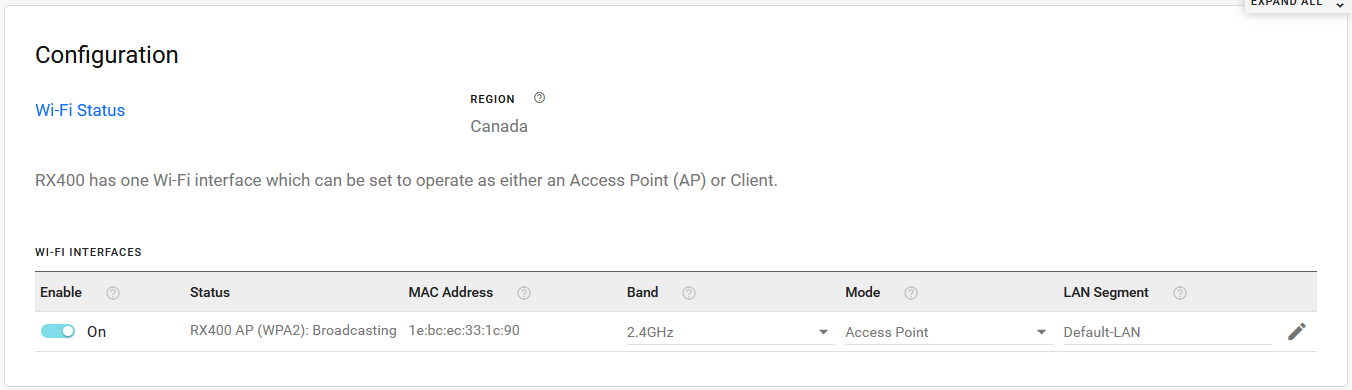
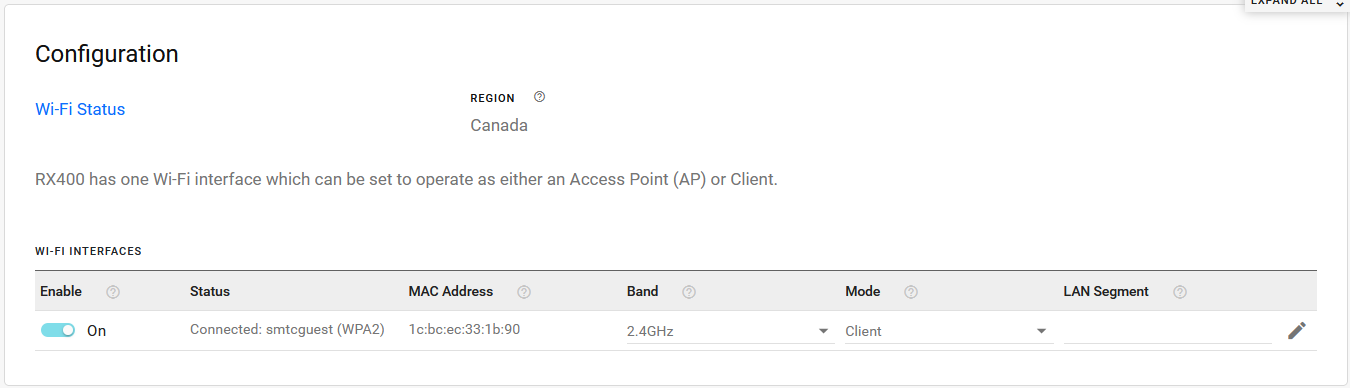
The router has one Wi-Fi interface, which you can set to operate as:
Access Point (2.4GHz or 5GHz)
Client (2.4GHz, 5GHz, or 2.4GHz + 5GHz)
REGION
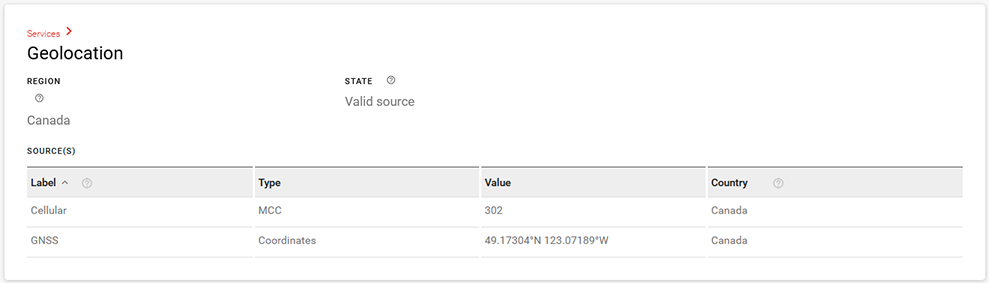
The REGION field is the regulatory domain that the router Wi-Fi is using. It is determined by using either the Global Navigation Satellite System (GNSS) sensors in the router, or by the Mobile Country Code (MCC) or Mobile Network Code (MNC) received from the carrier and received directly by the receiver on the device. The router automatically loads the operating frequencies and transmit power levels for that regulatory region in the software and enables 802.11d for broadcasting the newly obtained country information. If the router is not able to determine the region, it uses only channels that are available globally. For more information on supported channels, please refer to the Wi-Fi specifications in the AirLink RX400-EX400 Hardware User Guide .
PLACEMENT
A PLACEMENT switch appears for supported regions outside North America. The switch can limit the available 5GHz Wi-Fi channels according to regional regulatory requirements for indoor and outdoor use. The PLACEMENT options are Indoor (default) and Outdoor.
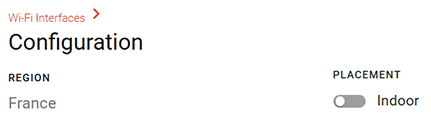
- When Indoor is selected, the router can use channels allowed for indoor and outdoor use.
- When Outdoor is selected, the router can use only the channels allowed for outdoor use.
For more information on supported channels, refer to the Wi-Fi specifications in the AirLink RX400-EX400 Hardware User Guide .
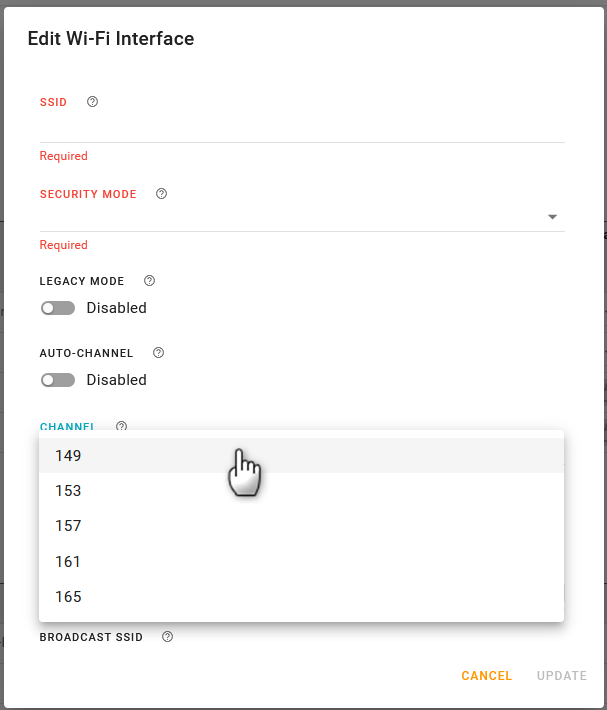
You can also view the available 5GHz channels for your region and, if applicable, PLACEMENT setting, by editing a 5GHz Access Point, disabling AUTO-CHANNEL, and viewing the CHANNEL list.
NOTES:
- The region and, if applicable, PLACEMENT option applies to both AP and Client mode. In Client mode, the router will only be able to connect using the applicable channels.
- Available channels may differ, depending on the region’s regulatory requirements.
- Enabling DFS Channels will make DFS-specific channels available in AP mode regardless of the region and, if applicable, PLACEMENT option. DFS (Dynamic Frequency Selection) channels are always enabled when Wi-Fi is in Client mode.
For details on how your router is determining its region, go to Status > Services > Geolocation.
Configuring a Wi-Fi Access Point
To configure an interface as an Access Point, click  at the end of the row in the WI-FI INTERFACES table (as shown above).
The Edit Wi-Fi Interface menu appears — configure the fields in any order.
- ENABLE the interface.
- Select the BAND the Access Point will use — 2.4GHz or 5GHz
- Set the MODE to Access Point.
Select the LAN SEGMENT that you’re going to use for this access point.
Tip: Click X to display the list of available LAN segments. LAN segments are configured under Networking > Zones Settings > LAN Segments.
Enter the access point’s SSID (a case-sensitive network name).
Select the SECURITY MODE — Depending on the mode selected, specific security credential types are required:
- OPEN — No security. (This mode is not recommended.)
- WPA — Available when LEGACY MODE is enabled. Requires only a SECURITY PASSPHRASE (This mode is not recommended.)
- WPA2 — Requires a SECURITY PASSPHRASE and 802.11w options.
- WPA2/WPA3 Transition Mode — Requires a SECURITY PASSPHRASE, plus 802.11w options.
- WPA3 — Requires only a SECURITY PASSPHRASE.
- For all security modes except OPEN, enter a SECURITY PASSPHRASE of at least 8 characters.
- Enable DFS Channels to open up more Wi-Fi channels for the router to use, while preventing the router interfering with channels used by radar equipment (near airports, for example). With DFS Channels enabled, the router will switch channels if it detects radar equipment using the same channel. Unless you know that your other operating equipment is DFS capable, Semtech recommends leaving DFS Channels disabled.
- Enabling DFS allows for more 5GHz channels, but may result in delayed connectivity at boot and in the presence of radar.
- If the router Access Point (AP) switches channels because of radar activity, the AP does not broadcast for about 30 minutes. In addition, Semtech recommends against configuring the AP interface during that time, otherwise the AP will not resume broadcasting until the router is restarted.
Enable LEGACY MODE to restore security option WPA (version 1) and support TKIP encryption for WPA/WPA2 modes. By default, this is disabled and only AES encryption is supported.
Note: TKIP is only supported in non-US regions even with LEGACY MODE enabled.For WPA2 and WPA2/WPA3 Transition Mode only, select the 802.11W option.
The 802.11w standard uses Protected Management Frames (PMF) to ensure clients are legitimate. Options are:- Disabled — for WPA2 mode only.
- Optional (default) — 802.11w is used for clients that support it, while clients that do not support 802.11w will still connect to the router.
- Required — Forces 802.11w operation; clients that do not support 802.11w will not connect.
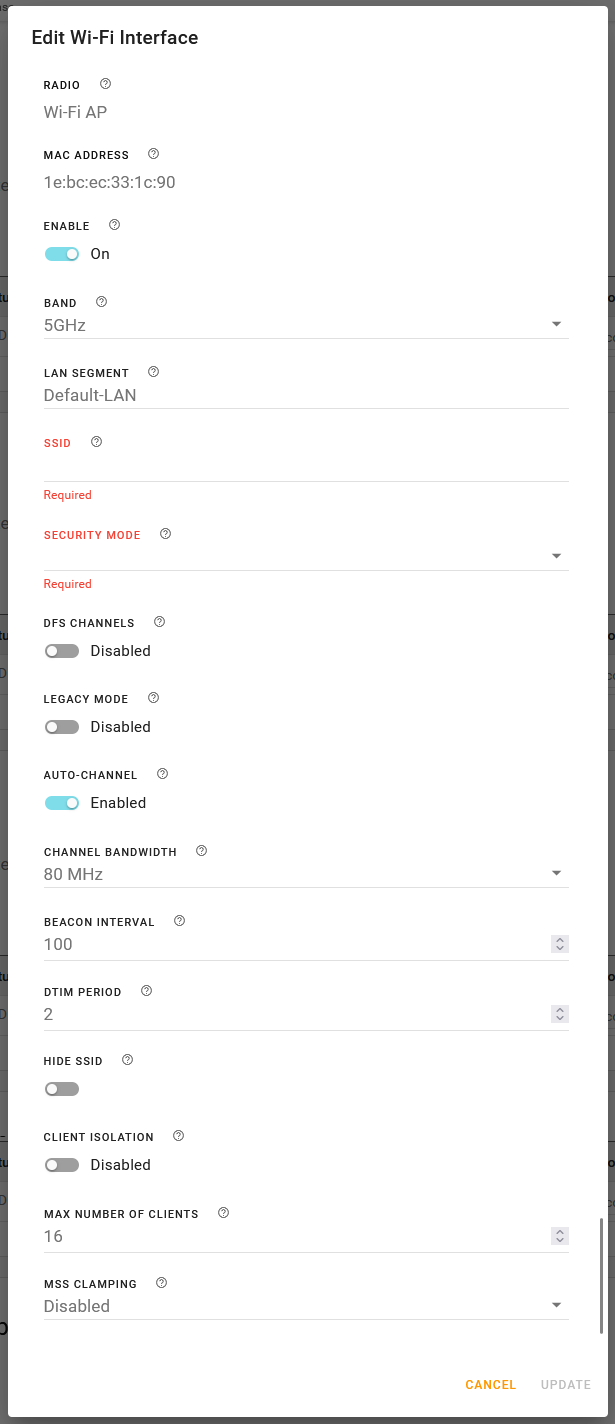
- Enable AUTO-CHANNEL to have the router choose the channel on which to operate.
To use a specific channel, disable AUTO-CHANNEL and then select a channel from the CHANNEL list that appears. - When BAND is set to 5GHz, select the CHANNEL BANDWIDTH to use. Each 20 MHz of bandwidth corresponds to 1 channel (i.e., 1 channel = 20 MHz, 4 channels = 80 MHz). The options are:
- 20 MHz, 40 MHz, 80 MHz (default)
- Set the BEACON INTERVAL to configure how often the router sends periodic messages (beacons) to advertise its availability.
- Range is 50–4000 milliseconds (default is 100)
- Set the DTIM PERIOD to the number of beacons (plus 1) that a client device can sleep through before waking to check for messages.
For example, if the DTIM Period is set to 3, the client sleeps through two beacons and wakes for the third beacon. The higher DTIM PERIOD value, the longer the client device can sleep, and the more battery power the client device can potentially save. However, high DTIM periods can also reduce throughput to the client. The default period is 2 (wake for every second beacon).- Range is 1–255 (default is 2)
- Enable HIDE SSID to have the router hide the Access Point SSID from nearby devices scanning for available Wi-Fi networks. For a client to connect to the hidden SSID, the SSID and passphrase must be entered on the client.
- When CLIENT ISOLATION is disabled (the default setting), clients can “see” each other, and potentially sniff traffic from each other.
- For passenger Wi-Fi applications, enable Client Isolation to enhance security.
- Disable Client Isolation if you have client applications on the same LAN segment that need to interact with each other.
- Set the MAX NUMBER OF CLIENTS — Enter the maximum number of clients that can connect simultaneously to all access point interfaces. As a guideline, set a limit that is slightly higher than the number of clients you expect to connect.
- Range is 1–16 (default is 16)
- Set MSS CLAMPING — MSS (Maximum TCP Segment Size) Clamping controls the maximum packet size used for TCP connections between a local (LAN-side) host and a remote host over the Wi-Fi WAN interface. MSS Clamping helps avoid possible issues with sending and receiving large TCP packets over the WAN interface when other standard MTU mechanisms do not appear to be working with your installation. The options are:
- Disabled (default)
- Auto — When set to Auto, the MSS is calculated based on the detected MTU (Maximum Transmission Unit) of the network path as discovered by Path MTU Discovery (PMTUD).
- Manual — MSS is clamped to the specified maximum value bi-directionally for all inbound (remote-to-LAN) and outbound (LAN-to-remote) TCP connections when the TCP session is established using the Wi-Fi interface.
- MSS — When MSS CLAMPING is set to Manual, set the Maximum TCP Segment Size.
- Range is 1–2000 bytes (default is 1460)
Monitoring Access Point Mode Operation
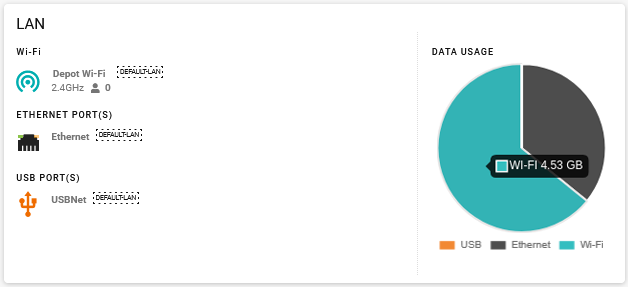
On Status > System > Dashboard, the LAN dashboard shows you the Wi-Fi LAN interfaces and the LAN segments they use. A blue Access Point icon ( ) indicates the interface is enabled and operating.
Tip: Click a Wi-Fi LAN interface icon to go to the WI-FI INTERFACES configuration table and review your configuration. Hover your cursor over the DATA USAGE pie chart segments to see usage for each connection type.
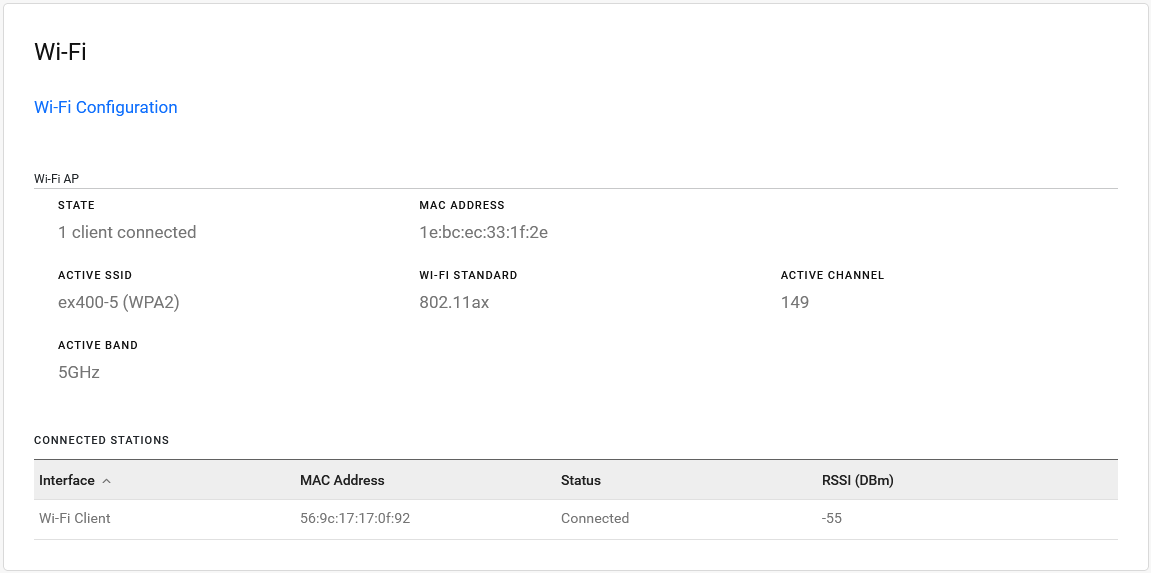
Additionally, you can go to Status > System > Wi-Fi to view detailed Wi-Fi Access Point status, including the active channel and connected stations (clients).
Configuring Wi-Fi Client Mode
You can create a Client Mode configuration by using a scanned SSID from the Client SSID Database, or by creating an SSID. The router will use the SSID for its WAN connection.
When connecting the router to an internal network via Wi-Fi or Ethernet WAN, ensure that the network providing a WAN link does not use the router’s default internal subnet (192.168.1.0/24). The address conflict will prevent the WAN connection from being established.
For more information, see this Semtech Customer Community article.
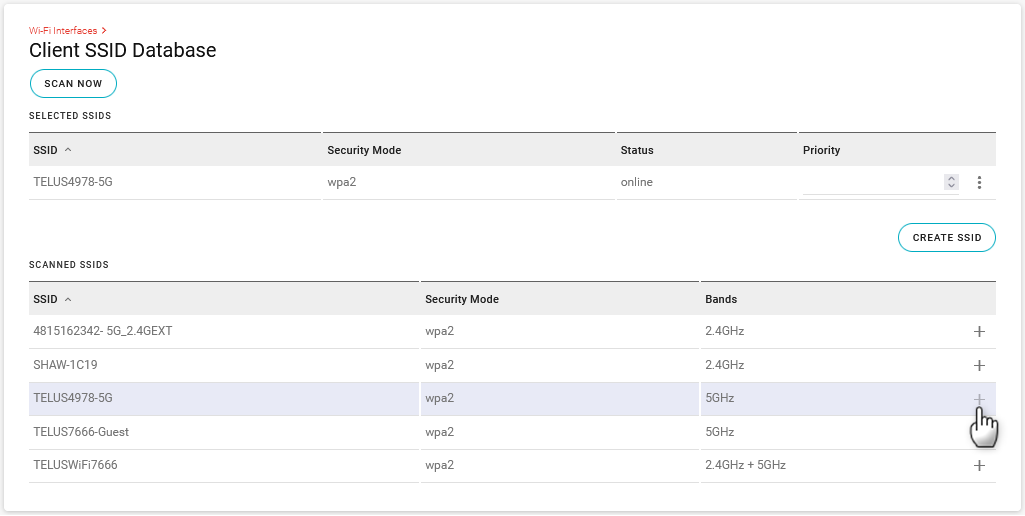
Tips:
- Click > or
 at the top of the page to view the Client SSID Database
 - Click SCAN NOW to refresh the SCANNED SSIDS table.
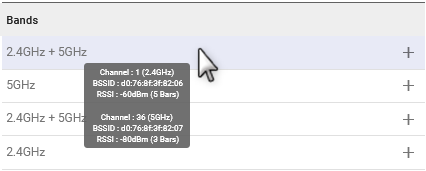
Rest the pointer on an SSID to view the channel, BSSID and RSSI for each band.
To use a scanned SSID:
- In the SCANNED SSIDS table, click + to add the desired SSID to the SELECTED SSIDS table. You must then fully enable the new SSID by adding the SSID’s security passphrase.
- In the SELECTED SSIDS table, click
 (Edit) for the desired Client SSID.
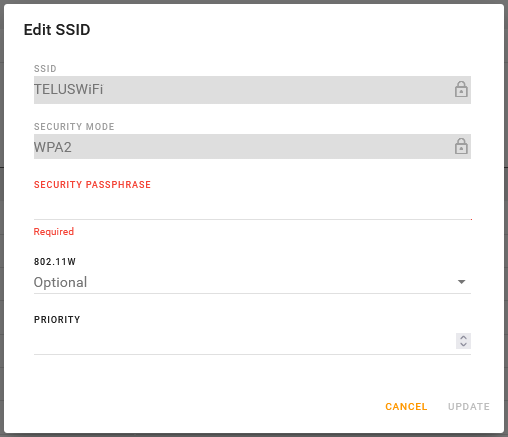
 - In Edit SSID, add the security passphrase and assign a priority (optional).
- Click UPDATE.
After you configure the SSID with a passphrase, the Wi-Fi Client interface starts using it (if another SSID with a higher priority is not configured).
To create an SSID manually:
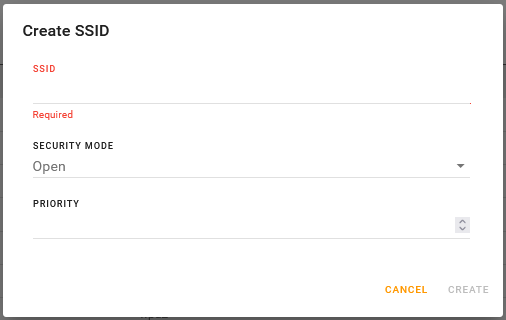
- Under the SELECTED SSIDS table, click CREATE SSID.
- In Create SSID, enter the SSID name.
- Select the SECURITY MODE — Depending on the mode selected, specific security credential types are required:
- OPEN — No security. (This mode is NOT recommended.)
- WPA — Requires only a SECURITY PASSPHRASE (This mode is NOT recommended.)
- WPA2 — Requires a SECURITY PASSPHRASE, plus 802.11w options.
- WPA2/WPA3 Transition Mode — Requires a SECURITY PASSPHRASE, plus 802.11w options.
- WPA3 — Requires only a SECURITY PASSPHRASE.
- WPA2-Enterprise — Requires RADIUS Authentication & Acceptance server details.
- WPA3-Enterprise — Requires RADIUS Authentication & Acceptance server details
- WPA3-Enterprise Suite-B (192 Bit) — Requires RADIUS Authentication & Acceptance server details
- For all security modes except OPEN, WPA2-Enterprise, WPA3-Enterprise and WPA3-Enterprise Suite-B (192 Bit), enter a SECURITY PASSPHRASE of at least 8 characters.
- For WPA2-Enterprise security mode only:
- Select the EAP METHOD to use. Options are:
- PEAP — when selected, requires the following:
- USER PASSWORD
- A ROOT CERTIFICATE. Optional. If required by RADIUS server, then select a certificate from the list, or select CREATE and enter the following:
SETTING DESCRIPTION TYPE Root Certificate NAME Required name identifying the certificate ROOT CERTIFICATE Click to upload the root certificate file
- TLS — when selected, requires the following:
- A USER CERTIFICATE WITH A ROOT CERTIFICATE. Select a certificate from the Uploaded certificates list or the Generated certificates list. If the certificate is not present, click CREATE. For Uploaded certificates, enter the following:
SETTING DESCRIPTION TYPE Certificate NAME Required name identifying the certificate PRIVATE KEY Click to upload the private key ROOT CERTIFICATE Click to upload the root certificate file
- For Generated certificates, clicking CREATE will open the Create Certificate Signing Request screen, where you can enter a certificate signing request to be sent to your certificate management system. See Managing Security Certificates for more information.
- A USER CERTIFICATE WITH A ROOT CERTIFICATE. Select a certificate from the Uploaded certificates list or the Generated certificates list. If the certificate is not present, click CREATE. For Uploaded certificates, enter the following:
- Certificates can also be created by going to System > Security > Certificates. See Managing Security Certificates for more information.
- As a client, it is the router's remote access point that passes the authentication to the RADIUS server.
Note:
- For WPA2 and WPA2/WPA3 Transition Mode, select the 802.11w. The 802.11w standard uses Security Association Query Requests to ensure that clients are legitimate. Options are:
- Disabled: not available as an option when WPA2/WPA3 Transition Mode is selected
- Optional (default): 802.11w will be used when connecting to access points that support it.
- Required: forces 802.11w operation; the router will not connect to access points unless they have 802.11w enabled.
- Enter the PRIORITY. Priority of networks ordered from 1 (high priority) to 65535 (low priority).
- For WPA2-Enterprise, WPA3-Enterprise and WPA3-Enterprise Suite-B (192 Bit) modes, enter the IDENTITY or username as defined on the RADIUS server
- Select CREATE.
When making a template to include the selected Client SSID with the enterprise certificates, the certificates will automatically be included in the template except for the private key. If the private key needs to be in the template, than like a password, it will need to be provided while in template creation mode.
Additional Client mode configuration
You can complete or edit the Client mode configuration in the WI-FI INTERFACES table.
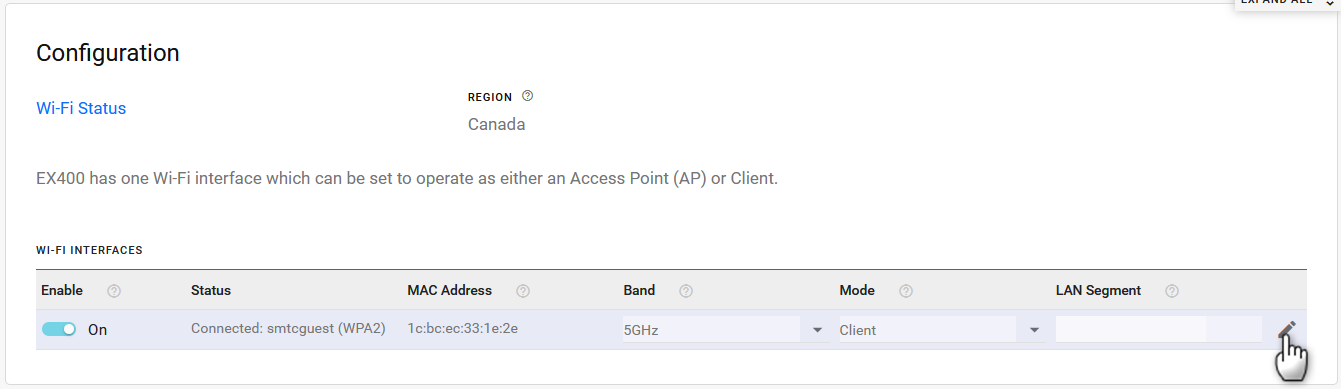
To complete or edit the Client mode configuration, click
at the end of the row of a Client interface.
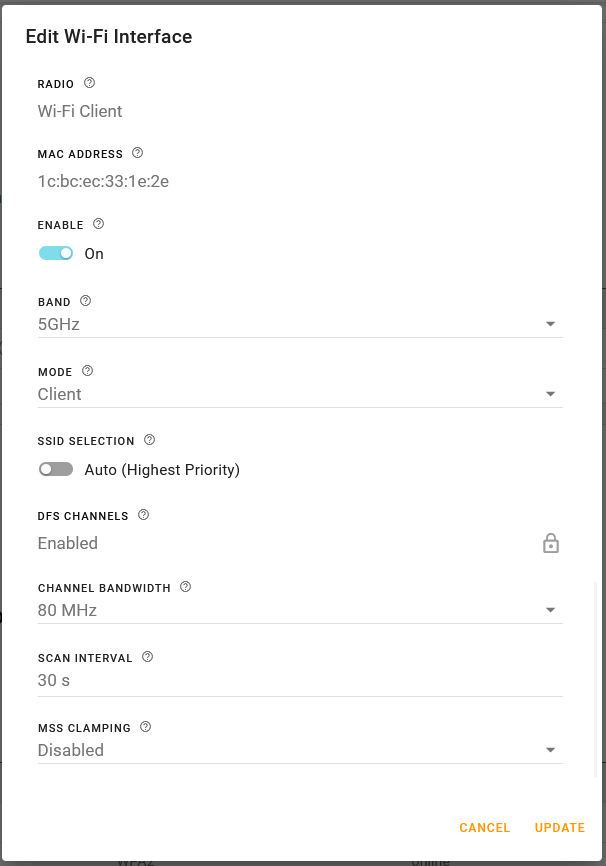
In Edit Wi-Fi Interface, configure the fields in any order.
- ENABLE the interface
- Select the BAND — 5GHz, 2.4GHz, or 2.4GHz + 5GHz
- Leave MODE set to Client.
Set the SSID SELECTION switch.
When you have multiple SSIDs configured, Semtech recommends leaving SSID SELECTION at the default Auto (Highest Priority) setting. The router will automatically search and connect to an SSID depending on priority. If priorities are identical, the router will use the closest SSID with the fastest estimated link speed.
To configure the Wi-Fi client to use only a single, specific SSID, set SSID SELECTION to “Manual” and then choose the CONFIGURED SSID to which the router will connect.
DFS CHANNELS is enabled when BAND is set to 5GHz or 2.4GHz + 5GHz. This non-configurable setting opens up more Wi-Fi channels for the router to use, while preventing the router interfering with channels used by radar equipment (near airports, for example). With DFS CHANNELS enabled, the router will switch channels if it detects radar equipment using the same channel.
When BAND is set to 5GHz, select the CHANNEL BANDWIDTH to use. Each 20 MHz of bandwidth corresponds to 1 channel (i.e., 1 channel = 20 MHz, 4 channels = 80 MHz). The options are:
- 20 MHz, 40 MHz, 80 MHz (default).
Enter the SCAN INTERVAL, which sets how often the router scans for SSIDs when disconnected. The options are:
- 5–65535 seconds (default is 5)
Set MSS CLAMPING — MSS (Maximum TCP Segment Size) Clamping controls the maximum packet size used for TCP connections between a local (LAN-side) host and a remote host over the Wi-Fi WAN interface. MSS Clamping helps avoid possible issues with sending and receiving large TCP packets over the cellular network when other standard MTU mechanisms do not appear to be working with your installation. The options are:
- Disabled (default)
- Auto — MSS is clamped at 40 bytes (20 byte IP header + 20 byte TCP header) less than the MTU of the Wi-Fi interface.
- Manual — MSS is clamped to the specified maximum value bi-directionally for all inbound (remote-to-LAN) and outbound (LAN-to-remote) TCP connections when the TCP session is established using the Wi-Fi interface.
MSS — When MSS CLAMPING is set to Manual, set the Maximum TCP Segment Size.
- Range is 1–2000 bytes (default is 1460)
Monitoring Client Mode Operation
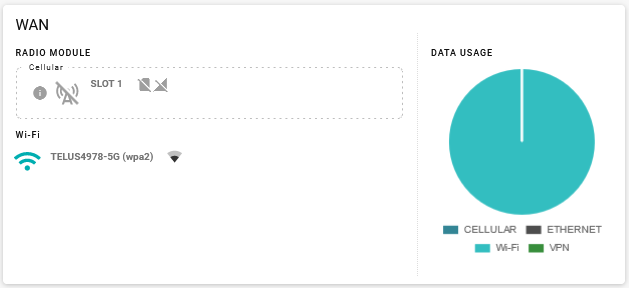
On Status > Dashboard, the WAN and LAN dashboards show you the Wi-Fi interfaces. A grey Wi-Fi icon ( ) indicates a disconnected interface. A blue Wi-Fi icon (
 ) indicates a connected interface.
Tip: Click a Wi-Fi icon to go to the WI-FI INTERFACES configuration table and review your configuration.
Additionally, you can go to Status > System > Wi-Fi to view detailed Wi-Fi Client or Access Point status.
Some Wi-Fi security modes with specific configuration settings are equivalent to other modes, which may cause overlap between Access Point and Client security modes. In some situations, the router client may report the security mode selected by the Access Point (some WPA2-Enterprise modes can appear as WPA3-Enterprise, for example), which may not be expected considering the router’s configured security mode.
