Using the SIM Database and SIM Templates
Introduction
The SIM Database (available at Hardware Interfaces > Cellular Interfaces > SIM Database) is used for storing and applying configurations to SIM cards.
In the KNOWN SIM table, you can view SIM card configurations that the router has used, including SIM cards that the router is currently using. You can also edit the configuration for a known SIM card to match any updates required by your carrier; a new APN, for example.
Known SIM card entries are based on the last configured state. The current SIM in use can be updated using the Cellular Interface configuration (Hardware Interfaces > Cellular Interfaces > Configuration) or directly in the KNOWN SIM table. Either method produces the same result.
In the TEMPLATE table, you can create and maintain one or more SIM Templates. SIM cards that have not yet been inserted and added to the database can be preconfigured using a SIM Template, which will set up Rank, APN, MTU, and other network settings. SIM Templates are applied by including them within an AirLink OS device template, and then applying that device template to one or more additional routers.
AirLink OS will apply Known SIM configurations first if a complete ICCID match is found in the database, and then apply a SIM Template if no direct match is found. If there is no Known SIM record and no matching SIM Template, then the SIM will be used in Auto mode for APN, MTU, and network settings. If there is more than one template that matches the SIM, then it will use the Rank to determine which template to use.
If Auto mode allows a SIM card to connect and operate as intended, no SIM Template is required.
If a SIM card has previously been inserted into a router, whether it is actually used to connect to a carrier network or not, the router will have a Known SIM entry for that SIM card. If you need to update custom settings for a Known SIM card using a SIM Template, then you must select the EMPTY TABLE ON APPLY TEMPLATE option in the KNOWN SIM table when creating the AirLink OS device template that you intend to apply to other devices.
If the SIM card has a PIN code assigned to it, then you can configure the router to enter the PIN on reboot. For more information on SIM PIN, see SIM PIN .

Table of Contents
 Initializing Table Of Contents...
Editing a Known SIM
To edit a Known SIM:
- In the KNOWN SIM table, at the end of a table row, click
 and select Edit.
 - In the Edit SIM configuration window, modify the required settings, as described below.
If the SIM has a PIN, you must re-enter the correct SIM PIN to change the SIM configuration.
If the SIM has an authentication password, you must re-enter the correct password to change the SIM configuration.
The settings in the Edit SIM configuration window match the settings in the Cellular interface (Hardware Interfaces > Cellular Interfaces > Configuration) if you are editing a SIM currently in use.
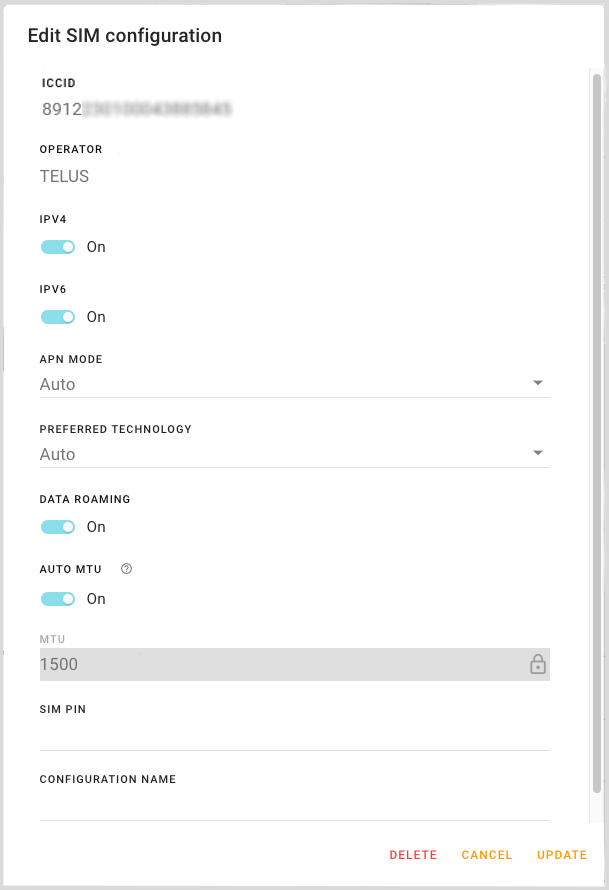
| SETTING | DESCRIPTION | RANGE |
|---|---|---|
| IPV4 |
|
On, Off |
| IPV6 |
|
On, Off |
| APN MODE |
When APN MODE is set to Auto, the router will automatically select the appropriate APN settings based on the SIM card or network it is connected to. When APN MODE is set to Manual, you may need to set one or more of the following, as required by your service provider:
When APN MODE is set to Multi, up to 5 virtual APNs can be created per SIM. For example, a Bell SIM can go on the air with the generic “inet.bell.ca” APN and also a specific custom APN. This allows the router to connect to both APNs at the same time using one SIM. The APN LIST will allow you to enter the different APNs that the SIM supports. See Configuring Cellular Interfaces: Multi APN Configuration for more information on how to create a virtual APN. |
Auto, Manual, Multi |
| PREFERRED TECHNOLOGY |
|
Auto, 3G Only, 4G Only, 5G-SA |
| DATA ROAMING | Enables or disables roaming on the active SIM. When Off, the active SIM does not use data when roaming. | On, Off |
| AUTO MTU |
|
On, Off (default is On) |
| MTU |
|
68 — 65536 (default is 1500) |
| SIM PIN |
For more information on SIM PIN, see Configuring SIM PIN |
4 – 8 digits |
| CONFIGURATION NAME |
|
n/a |
Deleting a Known SIM
If you need to delete a SIM entry, in the KNOWN SIM table, at the end of a table row, click and select Delete.
After you delete a SIM database entry, if the router detects the same SIM again, the configuration for that SIM will be reset to defaults or the relevant SIM template, including any PIN.
If the SIM has a PIN and is currently in use and connected when the SIM database entry is deleted, the router will stay online without re-entering the PIN until it is rebooted.
If you want to continue using the PIN on the SIM, then you will need to re-enter the PIN when the SIM is automatically added to the SIM database. See SIM PIN for more information on re-entering a PIN.
About SIM Templates
Do I need to use a SIM Template?
- No, if your SIMs work in Automatic APN mode (using common APN, automatic MTU and no special settings)
- Yes, if you need to set any custom APN, multi-APN, authentication and/or custom MTU settings and apply those settings to other routers
To create a template that will set the appropriate carrier settings for other SIMs of the same kind, you must create a SIM Template, which can then be included in an AirLink OS device configuration template. SIM Templates let you configure the associated parameters, and AirLink OS will apply them based on the matching pattern (Association Type) that you specify.
When applying a device configuration template that includes a SIM Template, any known SIMs in the target router will use their existing configurations before applying the SIM Template settings. If you are trying to override an existing SIM configuration with the new template, you must select EMPTY TABLE ON APPLY TEMPLATE so that the existing Known SIM table is deleted at the time the new template is applied.
Creating a SIM Template
SIM Templates include the following settings, as required:
- Association Type (Public Land Mobile Network(PLMN), for example)
- IPv4, IPv6 or dual stack IPv4/IPv6
- APN mode and settings
- SIM authentication details, if required by your carrier
- MTU
SIM Templates can be configured for these APN modes: Automatic, Manual or Multi-APN. Once all SIM configuration variables are set, save the SIM Template and include the SIM Template in a device configuration template.
You can create a SIM Template based on the following “Association types”:
- PLMN (recommended): You can determine the PLMN value from a router with a suitable SIM and checking the HOME PLMN at Status > System > Cellular. The PLMN will be a numeric string in a format similar to xxx-xxx.
- Slot ID: You can associate the SIM template with the slot that the SIM card occupies; SLOT 1 (upper) or SLOT 2 (lower), for example.
- Carrier: You can select your carrier from a list. Note that the entry name in the configuration list may not match the Home Operator name displayed at Status > System > Cellular when the SIM is in use. This difference has no impact on operation.
- ICCID: Provide as many digits as required to specify the target ICCID prefix
To create a SIM Template:
Go to Hardware Interfaces > Cellular Interfaces > SIM Database.
Under TEMPLATE, click CREATE SIM TEMPLATE.
The Create SIM template window appears.
Configure the settings as described below.
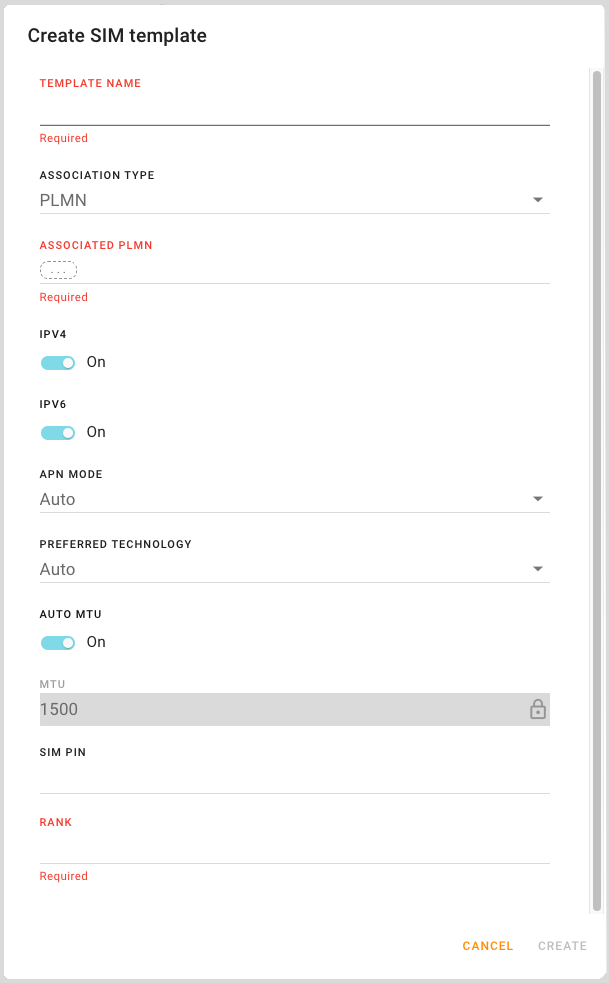
| SETTING | DESCRIPTION | RANGE |
|---|---|---|
| ASSOCIATION TYPE | Select how you want to identify the SIMs you want to configure with the SIM template | PLMN (default), ICCID, Carrier name, Slot ID |
| ASSOCIATED PLMN |
Appears if ASSOCIATION TYPE is set to PLMN. Select the desired PLMN to include in the template. The PLMN is a numerical string that can be found at Status > System > Cellular. |
n/a |
| ASSOCIATED ICCID |
Appears if ASSOCIATION TYPE is set to ICCID. Enter the desired ICCID to include in the template. Enter as many digits as required to specify the target ICCID prefix. Your carrier representative can provide you with the prefix length. The ICCID can also be found at Status > System > Cellular. |
n/a |
| ASSOCIATED CARRIER |
Appears if ASSOCIATION TYPE is set to Carrier name. Select the desired carrier to include in the template. You can also click CREATE to add a carrier name that is not in the default list. 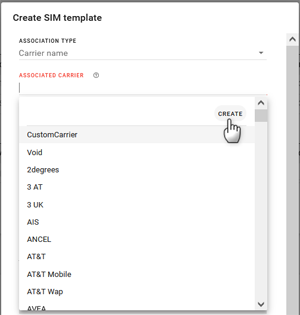
|
n/a |
| ASSOCIATED SLOT |
Appears if ASSOCIATION TYPE is set to Slot ID. Select the slot number to include in the template. Use this option if you are certain that your fleet’s SIM cards are identical and installed in the same SIM slot. |
R2C, SLOT 1, SLOT 2 |
| IPV4 | See IPV4 | |
| IPV6 | See IPV6 | |
| APN MODE | See APN MODE | |
| MANUAL APN | See MANUAL APN | |
| AUTHENTICATION PROTOCOL | See AUTHENTICATION PROTOCOL | |
| AUTHENTICATION USERNAME | See AUTHENTICATION USERNAME | |
| AUTHENTICATION PASSWORD | See AUTHENTICATION PASSWORD | |
| APN LIST | See APN LIST | |
| PREFERRED TECHNOLOGY | See PREFFERED TECHNOLOGY | |
| AUTO MTU | See AUTO MTU | |
| MTU | See MTU | |
| CONFIGURATION NAME | See CONFIGURATION NAME | |
| SIM PIN | See SIM PIN | |
| RANK | Enter a unique rank (or priority) for the SIM Template. The template’s rank determines the order in which it is applied. | n/a |
Adding a SIM Template to a Device Configuration Template
The SIM Template must be included as part of an overall device configuration template that, when applied to a fleet of routers, will configure the SIM card(s) present in those routers.
To create a device configuration template that will include any SIM Templates you’ve configured:
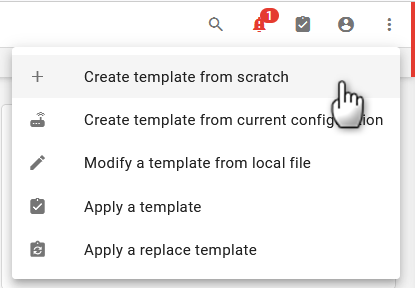
Click the Templates icon
 , located in the upper right-hand corner, and select Create template from scratch or Create template from current configuration. See Working with Device Templates for more information on these options.
Go to Hardware Interfaces > Cellular Interfaces > SIM Database.
For the KNOWN SIM table, select EMPTY TABLE ON APPLY TEMPLATE.
This ensures that the known SIM parameters on the target router are cleared, then replaced with new SIM parameters when the template (with SIM Template included) is applied. When the known SIM parameters are cleared, the SIM installed in the target router is treated as a newly installed SIM, causing the parameters from the SIM Template to be used.
If EMPTY TABLE ON APPLY TEMPLATE is NOT selected for the template, any existing known SIMs on the target router are NOT modified.
WARNING: Ensure that the SIM Template contains settings for all SIM cards used in your routers. By selecting EMPTY TABLE ON APPLY TEMPLATE, applying the template will delete the Known SIM table, and all the SIM cards installed in the target router will have their settings recreated using settings from the SIM Template. However, if any SIM cards installed in the target routers do not match an association type in the SIM Template, those SIM cards will be recreated using default settings (the default APN will be used, for example).
Do not select EMPTY TABLE ON APPLY TEMPLATE if you are adding a new SIM card to routers that already have a SIM card using a custom APN (or any other non-default settings). In that case, you do not want the SIM Template to delete the Known SIM parameters.
Selecting EMPTY TABLE ON APPLY TEMPLATE is optional if you are adding a new SIM card to routers that already have a SIM card operating in Auto APN mode (and using other default settings).
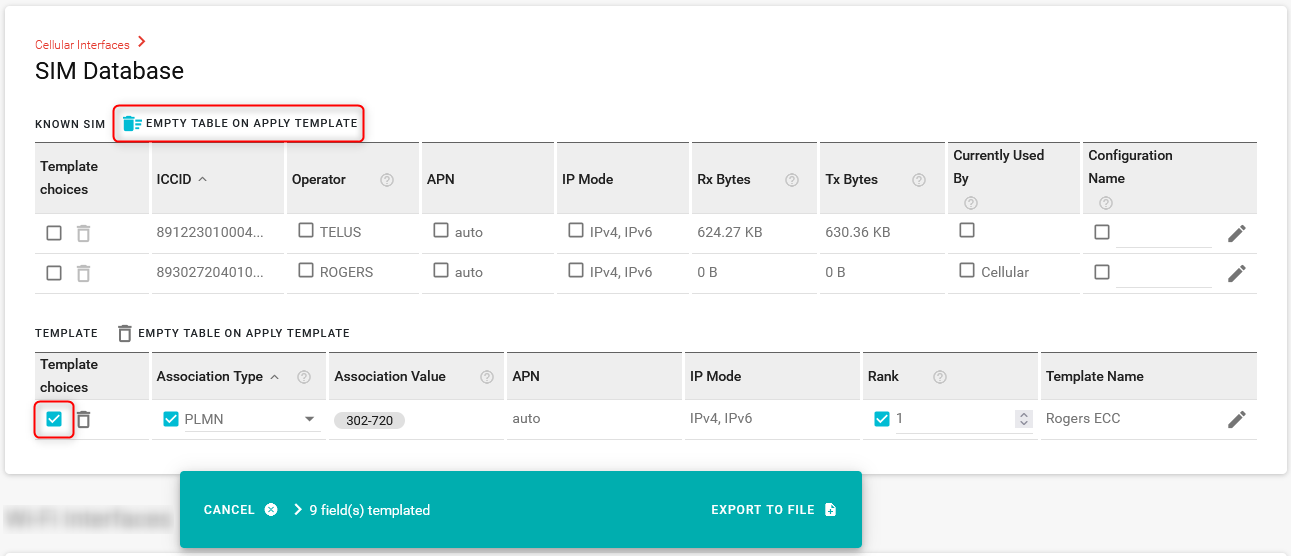
For the TEMPLATE table, ensure EMPTY TABLE ON APPLY TEMPLATE is NOT selected.
In the TEMPLATE table, select the desired SIM Template(s) by selecting Template choices.
If the SIM Templates contain any authentication passwords or SIM PINs, you must re-enter the passwords and SIM PIN when creating the device configuration template.
a. Edit the desired SIM Template to add the password(s) and/or PIN required. Ensure that the checkbox has a blue check mark, which indicates that the setting will be included in the template.
b. Click Update.
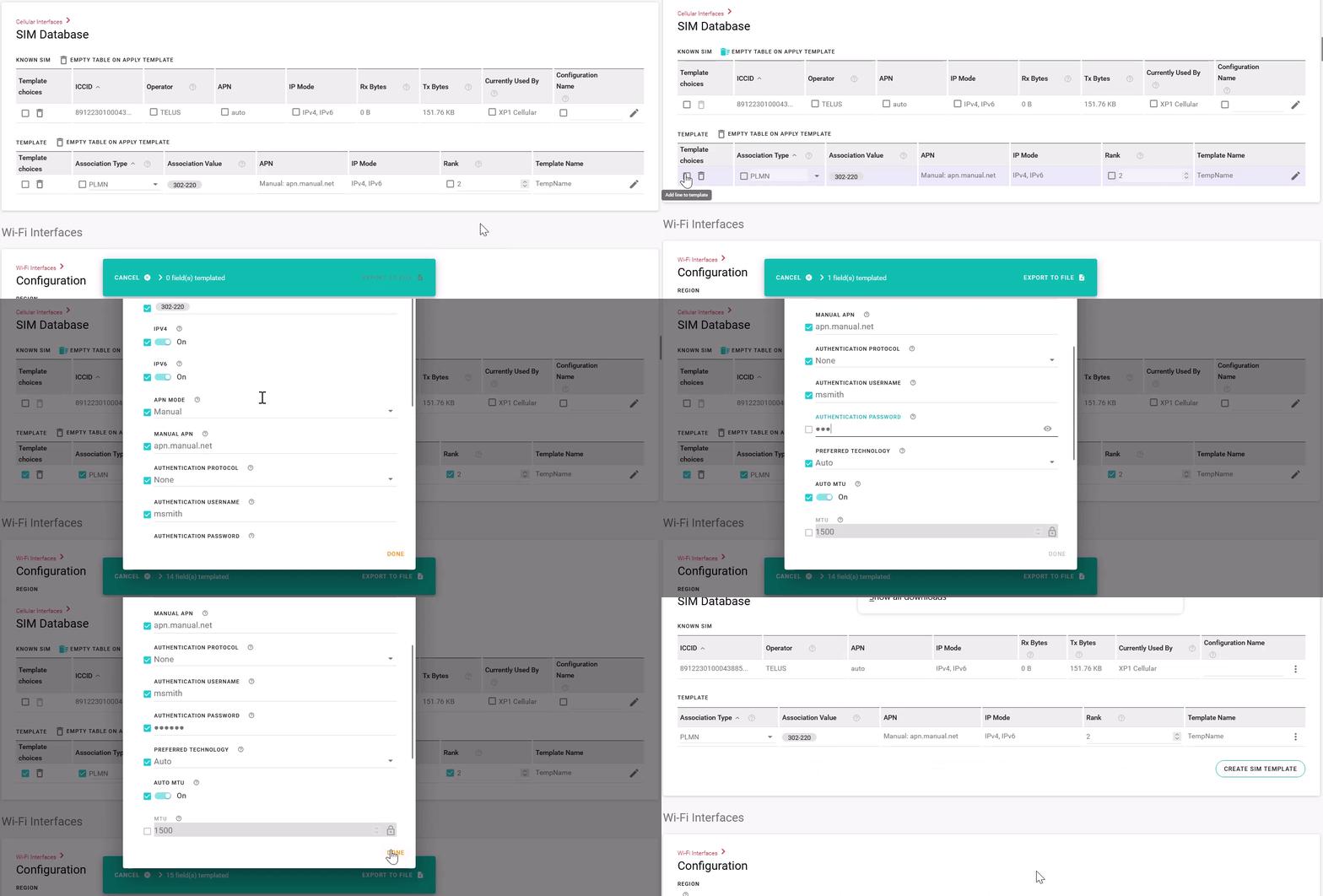
Click EXPORT TO FILE or (when using ALMS) EXPORT TO MY ALMS ACCOUNT.