Configuring Routers for AMM
Starting with AirLink OS 5.3, AirLink OS-powered routers can be managed using AirLink Mobility Manager (AMM), which can be deployed on premise. This page explains how to register your router on AMM and then configure the router in AirLink OS to connect to AMM.
For more information on using AMM, see the AMM documentation.
 Initializing Table Of Contents...
Register Your Router on AMM
To register your router on AMM, you will need the router’s serial number (available on the device label).
The basic procedure is described below. For full instructions, see the AMM documentation.
In AMM, go to Admin > Devices > Gateways.
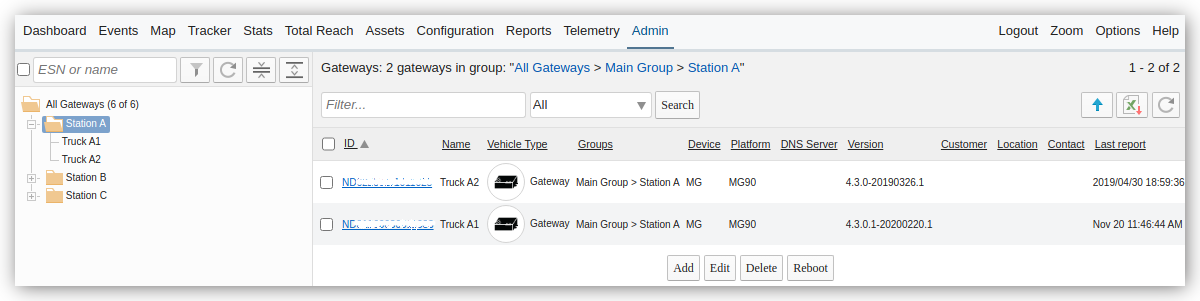
Click Add.
Enter the ID (the router serial number, available on the router label).
Enter the Name or alias for the router. Note that as of AMM 2.17, angled brackets “<” and “>” are no longer allowed in the names of routers. AMM 2.17 will erase the angled brackets in existing names when upgrading from an older version of the AMM.
Click Save to add the new router.
After adding the router, AMM generates a bootstrap keys file. This file contains the Bootstrap identity and Bootstrap Secret Key. Keep this file for the next stage of configuration in AirLink OS.
On the AMM Dashboard, the new device appears grayed-out because it has not connected to AMM yet.
Configure AirLink OS to Connect the Router to AMM
Before you begin, ensure that:
- The router is running AirLink OS 5.3 or later
- The router is powered up and has an active WAN connection
- No OpenVPN tunnels are configured on the router. The AMM configuration process creates an OpenVPN tunnel through which the router communicates with the AMM. Only one OpenVPN tunnel is supported on AirLink OS routers. This tunnel is reserved for communication between the router and AMM. Therefore, if the router is managed by AMM, you cannot configure the OpenVPN tunnel for any other purpose.
To configure the router to connect to AMM:
- In AirLink OS, go to System > Device Management > Device Manager.
Under SELECT DEVICE MANAGER, select AMM.

AMM LwM2M settings appear.
Warning: Selecting AMM as the Device Manager will disable the SELECT DEVICE MANAGER setting. To switch back to ALMS as the Device Manager, you must return the router to factory default settings.
Switching Device Manager to AMM will disable:
- Telemetry and LwM2M functionality until the AMM bootstrap configuration has been successfully completed
- LPWA functionality and ALMS connectivity for AirLink XR90 and XR80 routers
- Smart Reporting
Enter the BOOTSTRAP URI (location of your AMM server), BOOTSTRAP IDENTITY, and BOOTSTRAP SECRET KEY.
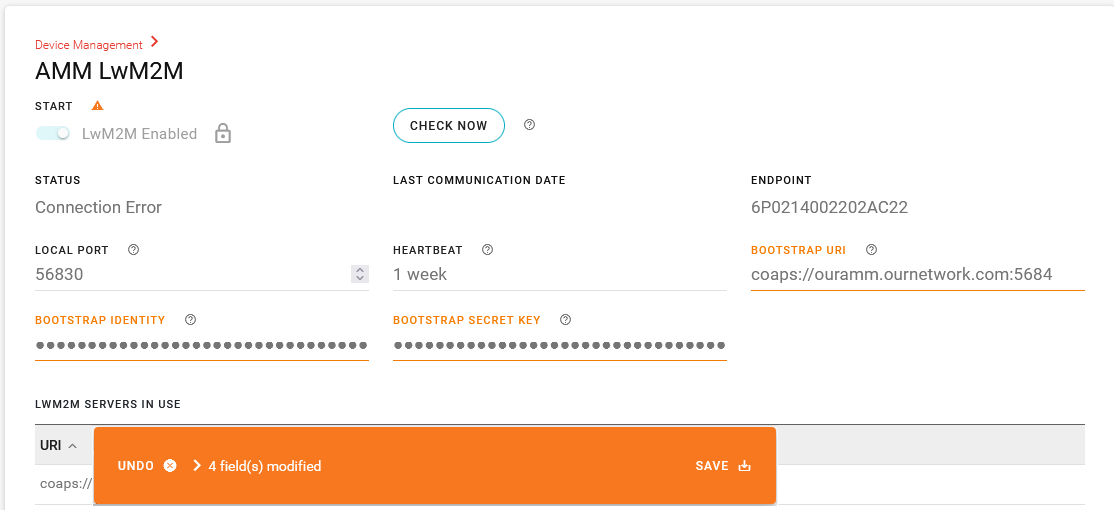
Click SAVE.
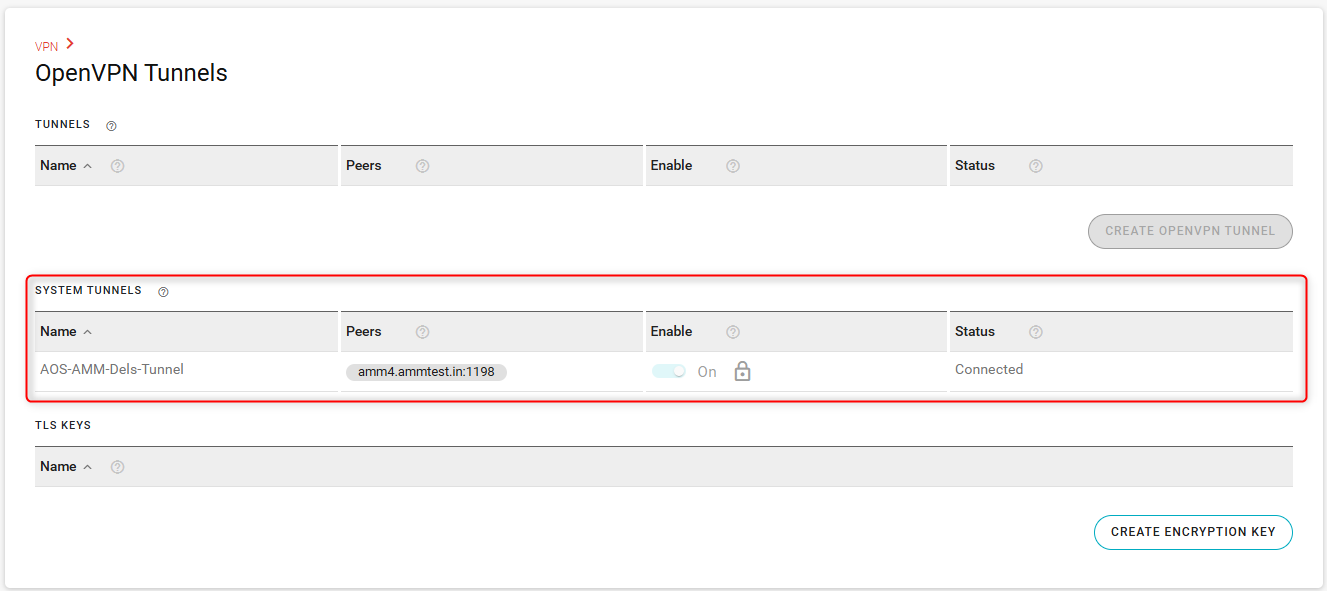
In AirLink OS, the device configures an OpenVPN tunnel to AMM. This tunnel connects using built-in Root CA certificates that are enabled after setting Device Manager to AMM.
After this OpenVPN tunnel is created, you cannot configure additional OpenVPN tunnels.
AMM supports the following certificate authorities:
- Let’s Encrypt
- Sectigo
- GoDaddy
- DigiCert
- Entrust
- GlobalSign
- IdenTrust
A container image “AOS-AMM-DelsAdapter” is also deployed, as shown under Container Applications > Images > System Images.
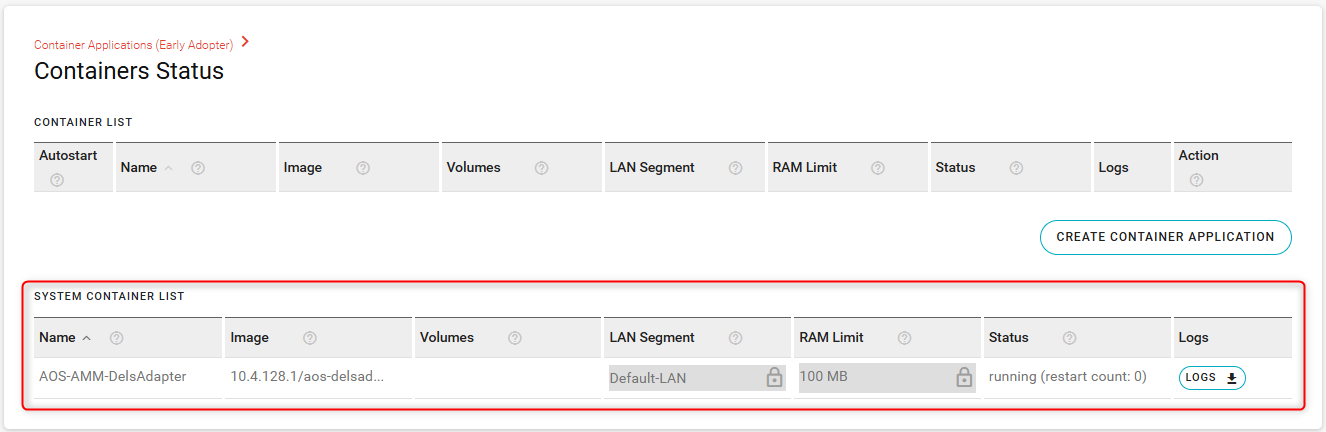
A system registry access configuration is created using the same system certificates. The registry URL is the same as the Bootstrap URI. “DELS” refers to the protocol that is used for the AirLink OS device to communicate with AMM.
To confirm connection, in the AMM UI, refresh the Dashboard. The router will be available and active in the list.
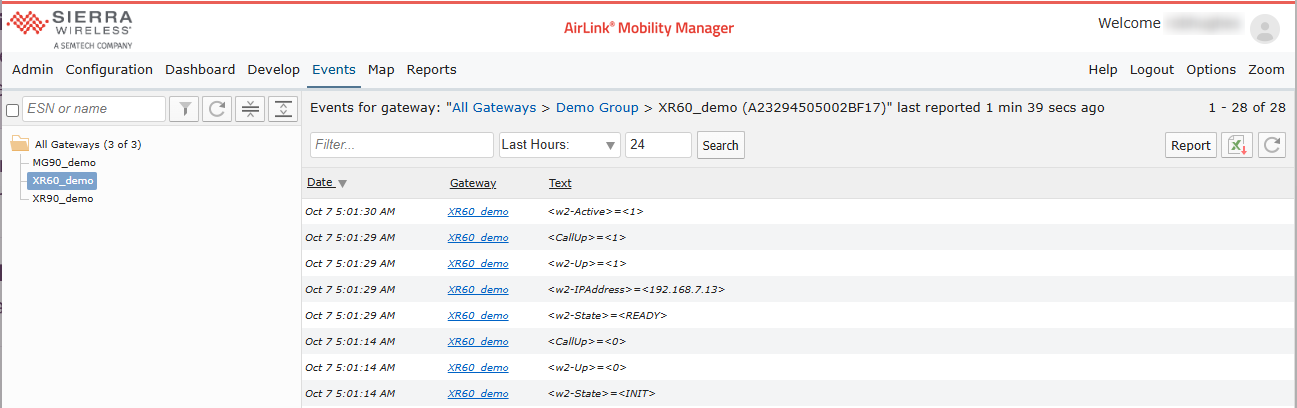
In the AMM Events tab, you can see router-related events for the router you’ve registered.
Post-Configuration Considerations
After registering your routers and establishing a connection to the AMM, it is crucial to maintain your routers on AirLink OS 5.3 or later. If the router is downgraded to, for example, AirLink OS 5.2, the AMM registration and connection will be lost. When the router is upgraded again to AirLink OS 5.3 or later you will need to re-configure the router to connect to the AMM.
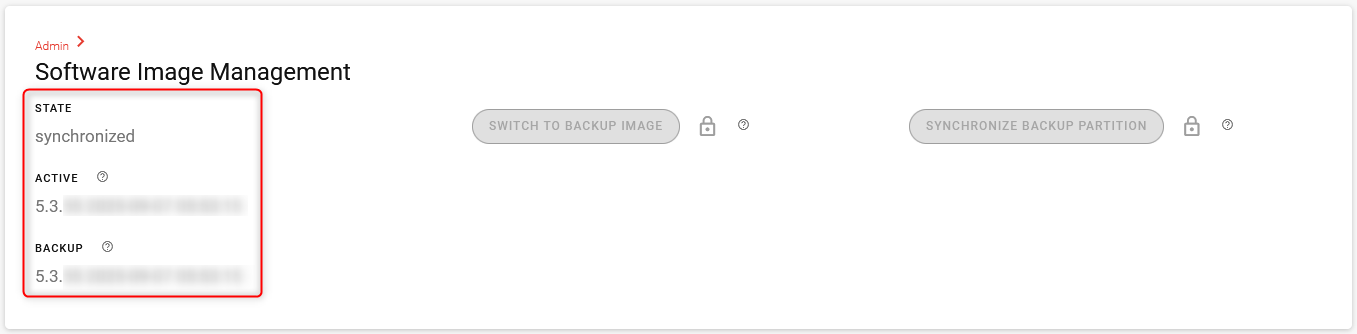
In order to prevent an unintended switch to a backup software image (from AirLink OS 5.3 to 5.2, for example), please ensure that the backup image is at version 5.3 or later. You can check the Active and Backup software versions at System > Admin > Software Image Management.